Schedules run on Backvera’s servers, not in WP-Cron, so your backups finish even when nobody is visiting your site.
Choose a frequency
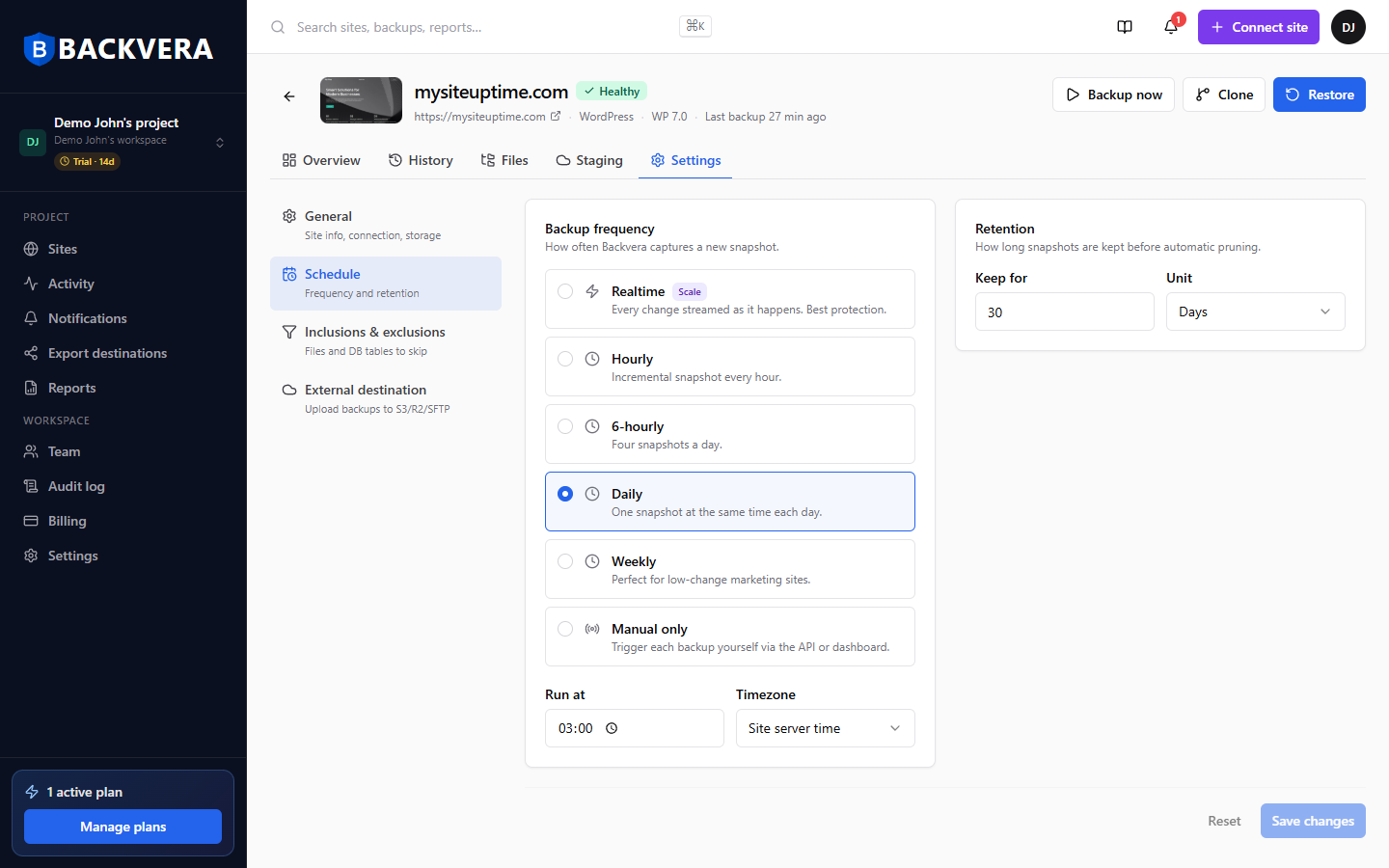
Open the site, go to Settings > Schedule, and pick how often Backvera captures a new snapshot:
- Realtime (Scale) – every change captured as it happens.
- Hourly (Business and up) – an incremental snapshot every hour.
- 6-hourly (Business and up) – four snapshots a day.
- Daily (Starter and up) – one snapshot at the same time each day.
- Weekly (all plans) – ideal for low-change sites.
- Manual only (all plans) – no automatic schedule; you trigger each backup yourself with Backup now or the API.
Higher frequencies need higher plans – the plan each one requires is shown next to it above, and any option you cannot use yet is locked in the picker with the plan needed to unlock it. Weekly and Manual only are available on every plan.
| Plan | Fastest schedule |
|---|---|
| Free | Weekly |
| Starter | Daily |
| Business | Hourly or 6-hourly |
| Scale | Realtime |
Each plan also includes every less-frequent option – for example a Business site can choose Hourly, 6-hourly, Daily, or Weekly. Manual only is available on every plan.
Run time and timezone
For Daily and Weekly schedules, set the Run at time and choose whether it is in UTC or your site’s server time.
Retention
Use Keep for to set how long snapshots are kept before automatic pruning – see Set how long backups are kept. Click Save changes when you are done. You can pause and resume a schedule at any time.
Still need help? Email our team at [email protected].