No load on your server
The scans run on Backvera's servers, so your host does no extra work and your pages load as fast as before.
Backvera scans the copy of your site that is already in the Backvera Cloud. The scans run on our servers, so your site does no extra work. A security analyst confirms each threat before it appears on your dashboard.
Security plans include your backups and security scanning, from $25 a year per site. Each has a 14-day trial, and no card is required.
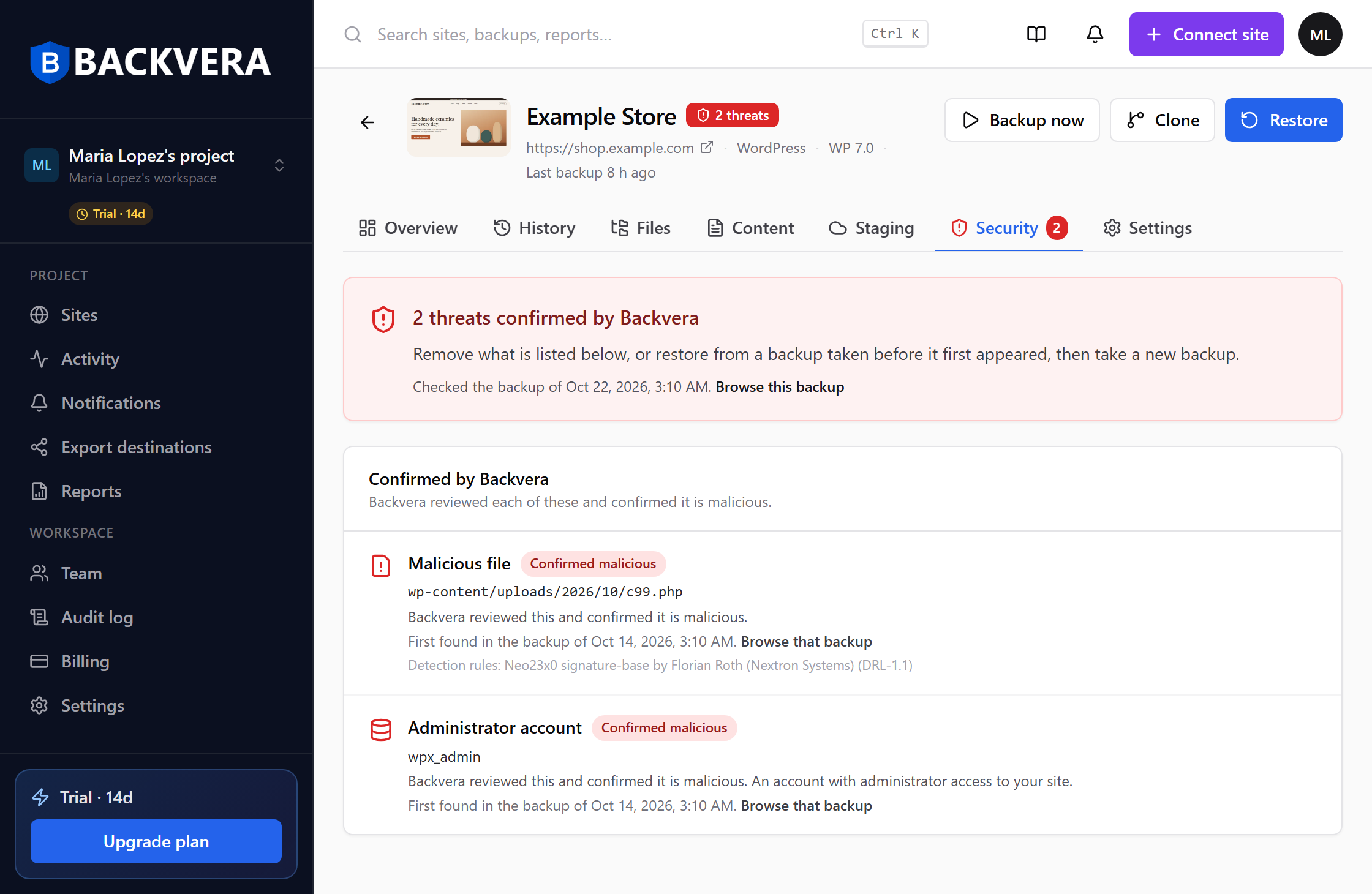
Most security plugins scan from inside the site they protect. They share its server, stop at its time limits, and run next to the malware they are looking for. Backvera scans the copy of your site in the Backvera Cloud instead.
The scans run on Backvera's servers, so your host does no extra work and your pages load as fast as before.
A plugin has to finish its scan inside the PHP time and memory limits your host sets. Backvera reads your backup instead, so those limits don't apply.
No part of the scan runs on your site, so malware on the site can't hide files from it or switch it off.
Each scan reads one backup of your site, including its database.
WordPress core and every plugin and theme from WordPress.org are compared, file by file, with the release you run.
Your files are matched against rules for known kinds of malicious code. We follow live injection campaigns across the web and write new rules from what we find.
Some attacks change the database and leave the files alone, so Backvera checks the database in your backup as well.
Automated rules raise false alarms, so a person checks first. A threat appears on your dashboard only after a Backvera security analyst has confirmed it.
The release comparison, the malware rules and the database checks run on Backvera's servers.
The analyst looks at the flagged code and decides whether it is malicious. Anything found harmless stays off your dashboard.
They show in your Sites list, on the site's Security tab and in its backup history.
Once an analyst confirms a threat, your dashboard shows it in three places. You can then restore from a backup taken before it appeared.
The site is marked in your Sites list, so you can tell which of your sites needs attention.
The site's Security tab shows the file or database entry, and the first backup that contained it.
Your backup history marks which backups were checked and which ones contain the threat.
Restore that file, or the whole site, from a backup taken before the threat appeared.
Each Security plan includes everything in the matching backup plan, plus security scanning. Storage, retention and restores stay the same.
Everything in Starter, plus security scanning.
$2.08 / month, billed yearly
Daily backups · 2 GB · 60-day retention
No credit card required
Everything in Business, plus security scanning.
$4.92 / month, billed yearly
Hourly backups · 10 GB · 90-day retention
No credit card required
Everything in Scale, plus security scanning.
$7.42 / month, billed yearly
Realtime backups · 50 GB · 1-year retention
No credit card required
Free and the backup-only plans don't include security scanning.
Compare every planNo credit card required. Every Security plan includes its backup plan in full.