Each backup is recorded as a snapshot with helpful context, so you can pick the right restore point with confidence.
Snapshot history
The History tab lists every snapshot with its time, size, any note you added, and how much changed. Realtime sites also show small delta markers between full baselines.
On the Security plans, the History tab also shows what Backvera found. A grey shield marks a backup that was checked with no confirmed threats, and a red badge such as 1 threat marks one that contains a confirmed threat. A backup with no mark has not been checked. See Security scanning: how Backvera checks your backups.
Thumbnails
Backvera captures a screenshot of your homepage with each full snapshot, so you can recognise a restore point at a glance.
Site inventory
The Overview tab shows a Site inventory summary – your WordPress version, active theme, and active/installed plugin counts at the time of the backup.
View full inventory
Click View full inventory on the Site inventory card to open the complete inventory for the selected snapshot. It has three tabs:
- Plugins – every plugin captured in the snapshot, with its author and version.
- Themes – every installed theme, with the active one badged.
- Core & environment – the WordPress core version, PHP version, database, locale, multisite flag, and active theme at that point in time.
A summary line at the top of each list reads, for example, “3 active · 0 updates”. The updates count tells you how many plugins or themes had a newer version available – in other words, what needed updating when the backup was taken. Use the search box to filter by plugin or author.
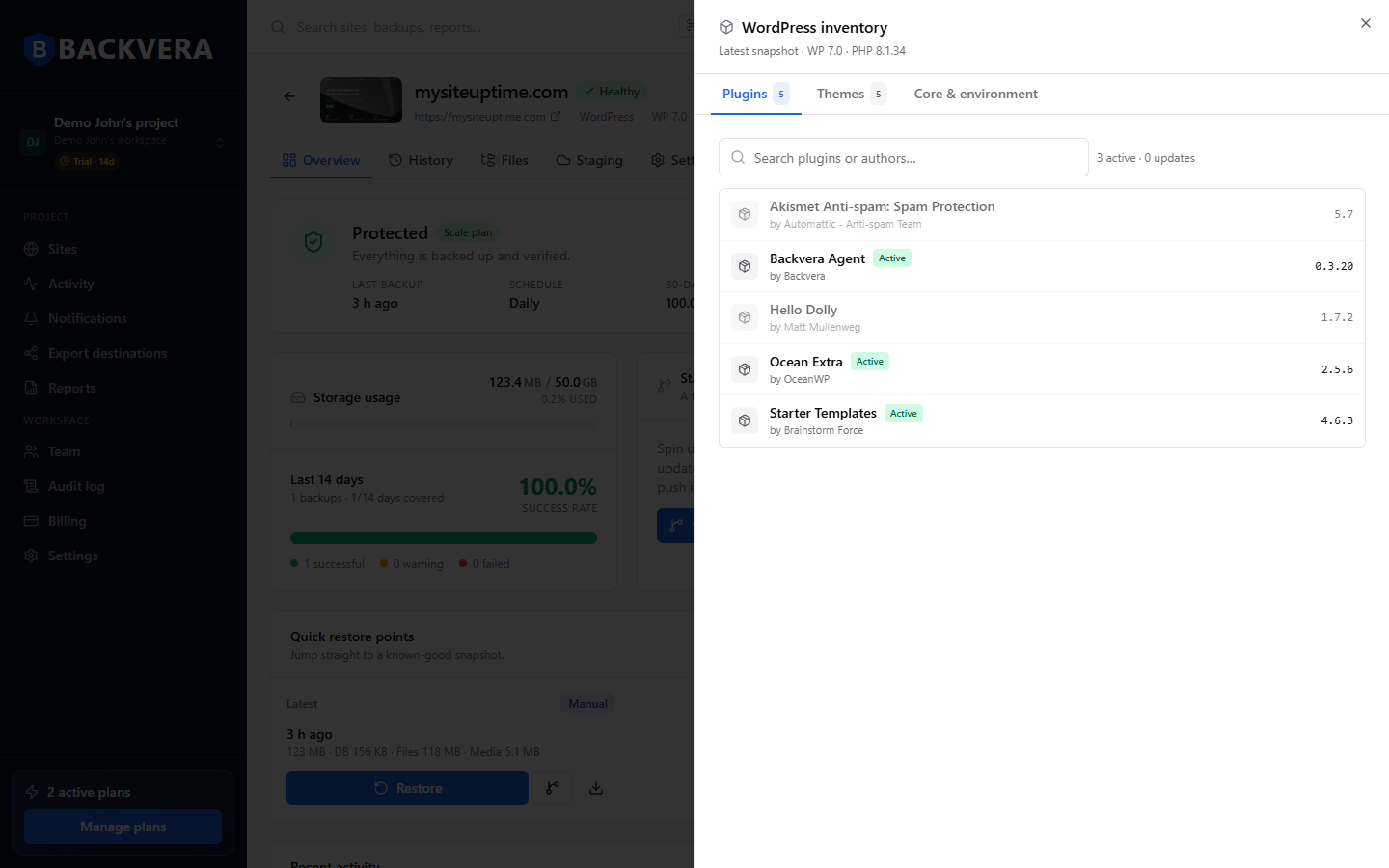
Reading the inventory (legend)
- Active (green badge) – the plugin or theme was active on the site in this snapshot.
- No badge – installed but not active.
- Version (shown on the right of each row) – the exact version captured in this snapshot.
- “N updates” (in the summary line) – how many components had an update available.
This snapshot captures the exact plugin and theme versions installed at that point in time. Restoring it reinstates the whole environment.
Multisite networks
For a WordPress Multisite, the Network tab lists subsites with their last backup, and lets you rescan the network or work with a single subsite.
Still need help? Email our team at [email protected].