This guide takes you from zero to your first backup. You will need an administrator login for the WordPress site you want to protect.
1. Start the connect wizard
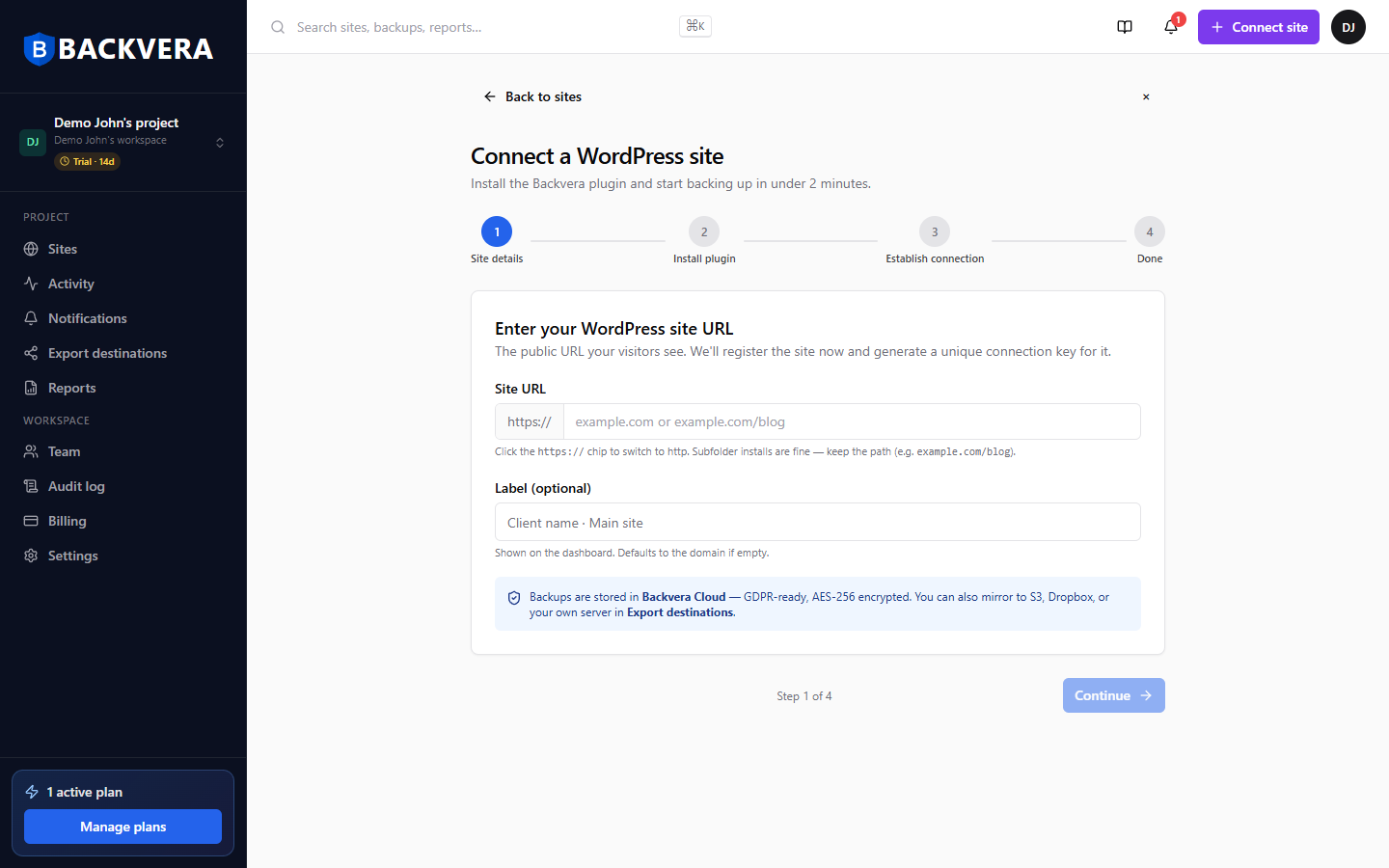
In the dashboard, click Connect site in the top-right corner. Enter your site’s public URL and an optional label, then click Continue.
2. Install the Backvera plugin
Choose how to install the plugin. The fastest path is One-click install: enter your WordPress admin username and password and Backvera installs and activates the plugin for you. Prefer to do it yourself? You can download a ready-paired ZIP or use a WP-CLI command instead.
3. Let Backvera connect
As soon as the plugin is active it pairs with your account automatically. The wizard advances to Done and queues your first backup. If you installed manually, you may need to paste a connection key – see Pair your site manually with a connection key.
4. Confirm you are protected
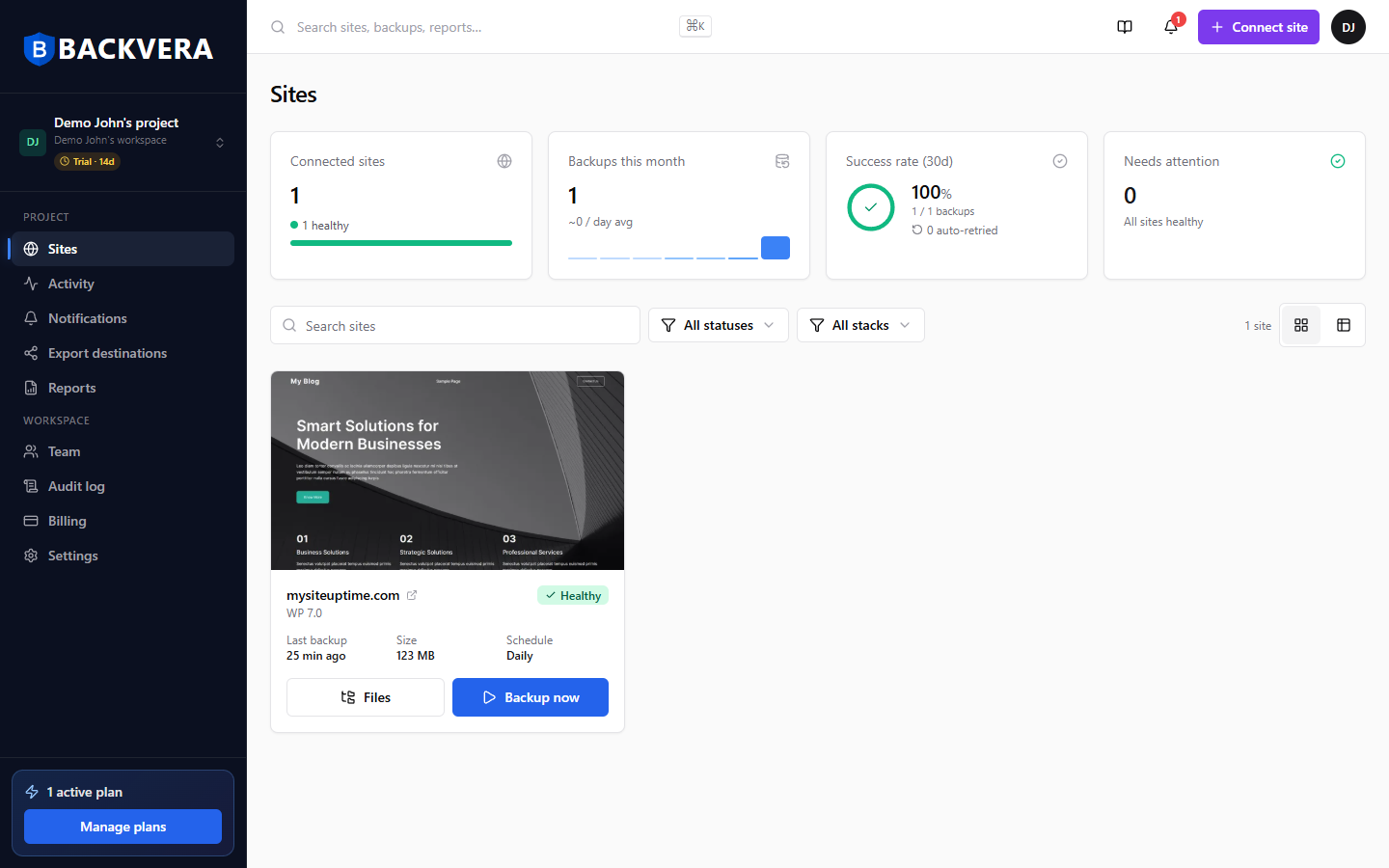
Back on the dashboard your site shows a green Healthy status, and within a few minutes the Last backup time updates. That is it – your site is protected.
Still need help? Email our team at [email protected].