Most installs pair automatically. If yours did not – for example you installed a generic copy of the plugin, or the automatic handshake was blocked – you can pair manually with a connection key.
1. Find your connection key
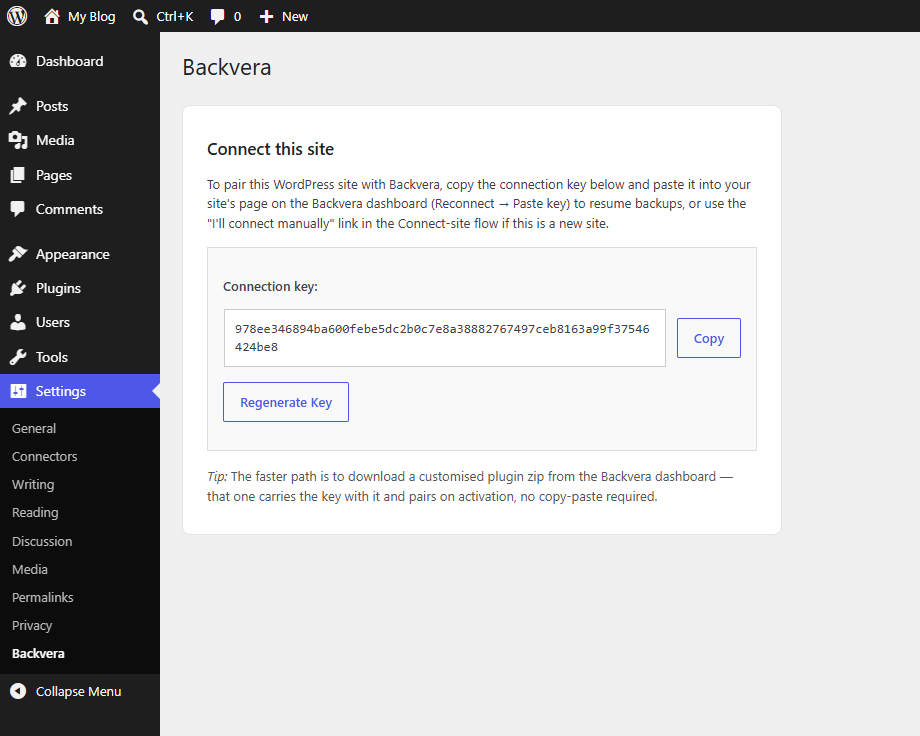
- In wp-admin, go to Settings > Backvera.
- Copy the read-only connection key. It is 64 hexadecimal characters (digits 0-9 and letters a-f).
2. Enter it in the dashboard
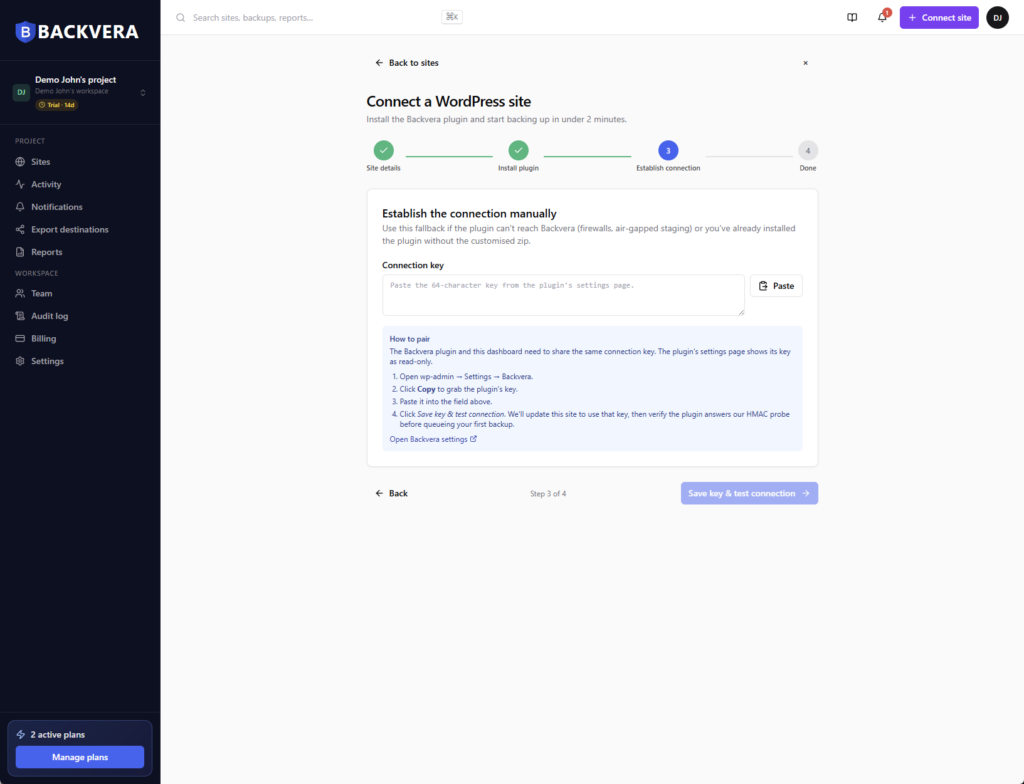
- In the Connect wizard’s connection step, paste the key into the field.
- Click Try again / test the connection. Backvera probes your site to confirm the key works, then queues the first backup.
If the test fails
A failed test usually means the plugin is not active, the key was not saved in the plugin, the keys do not match, or your site cannot be reached from the public internet. See pairing and test-connection errors for the fix for each case.
On WordPress Multisite, pairing is handled once at the network level in Network Admin > Settings > Backvera, not per subsite.
Still need help? Email our team at [email protected].