Backvera can alert you when backups succeed or fail, and on other important events, through the channels your team already uses. You connect each channel once for the project, then use alert rules to decide which events go to which channel.
Connect a channel
- Open Notifications from the sidebar.
- Add a channel: Email, Slack, Microsoft Teams, Telegram, or a Webhook.
- Enter the channel’s details – for example a Slack or Teams Incoming Webhook URL, a Telegram bot, or an HTTPS endpoint that receives a JSON payload.
- Use Send a test message to confirm it works.
Alert rules: choose which events go where
The Event routing section is a grid: each row is an event, and each column is a channel you have connected. Tick the box where an event row meets a channel column to send that event there. You can route the same event to several channels (for example, failures to both Slack and email), and send different events to different places.
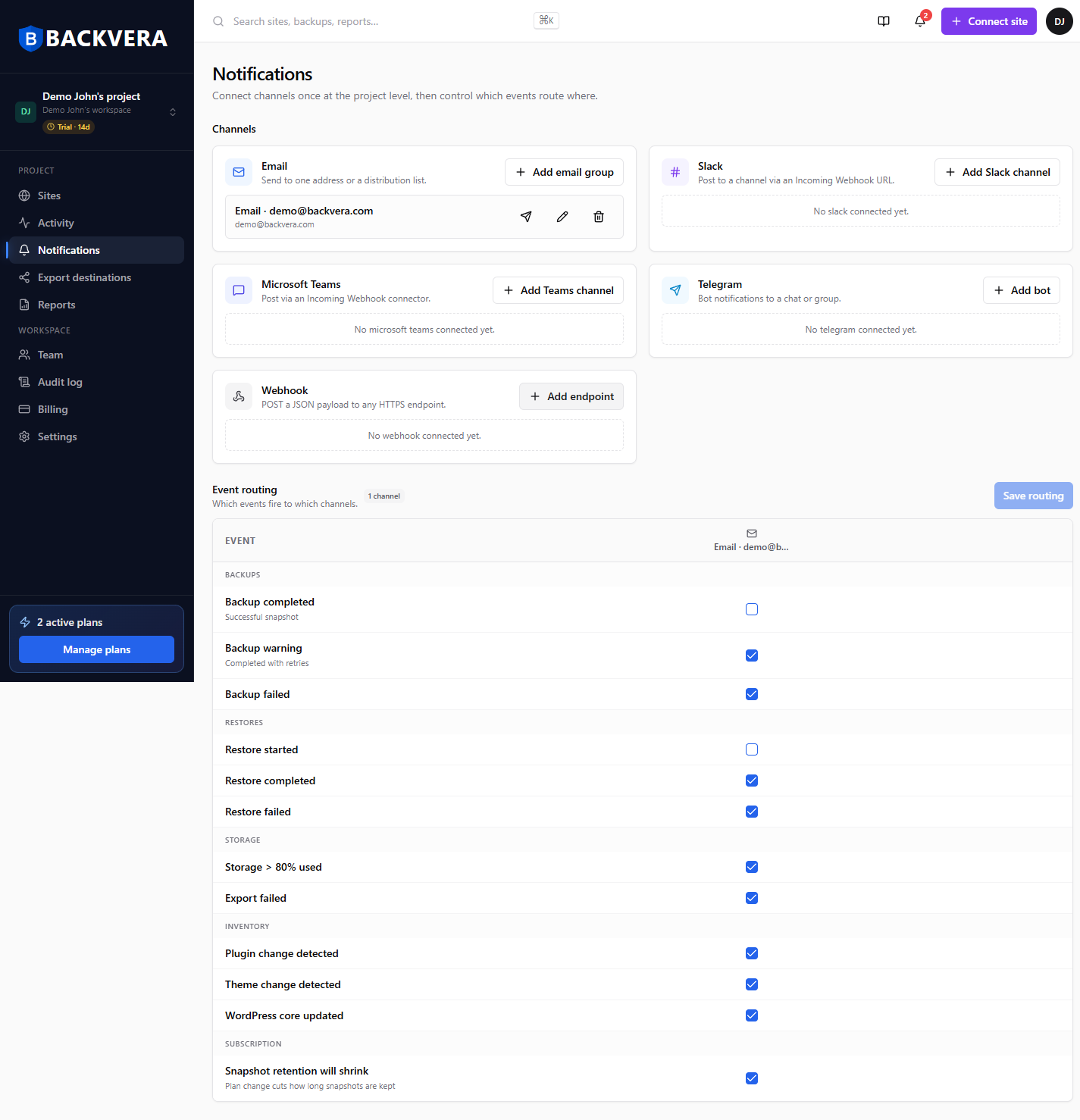
The events you can route
Events are grouped by what they are about:
- Backups – Backup completed (a successful snapshot), Backup warning (completed with retries), and Backup failed.
- Restores – Restore started, Restore completed, and Restore failed.
- Storage – Storage over 80% used, and Export failed (a mirror to an external destination did not complete).
- Inventory – Plugin change detected, Theme change detected, and WordPress core updated.
- Subscription – Snapshot retention will shrink (a plan change would cut how long snapshots are kept).
Security threats are not among these events. They show on the Sites list and on the Security tab of each site.
Sensible defaults are set for you: the alerts that usually matter – failures, warnings, storage, and inventory changes – start switched on, while noisier ones such as every successful backup or Restore started start off. Change any of them to suit your team.
Save your rules
Your changes are not applied until you click Save routing. The button becomes available as soon as you change a tick – click it to store your rules.
Test channels and the notification bell
Use Send a test message on any channel to confirm delivery. You also get an in-app notification bell in the top bar – a quick feed of recent events, independent of your channel rules.
Backup-failure emails are grouped so a single site with repeated trouble in one day does not flood your inbox.
Still need help? Email our team at [email protected].