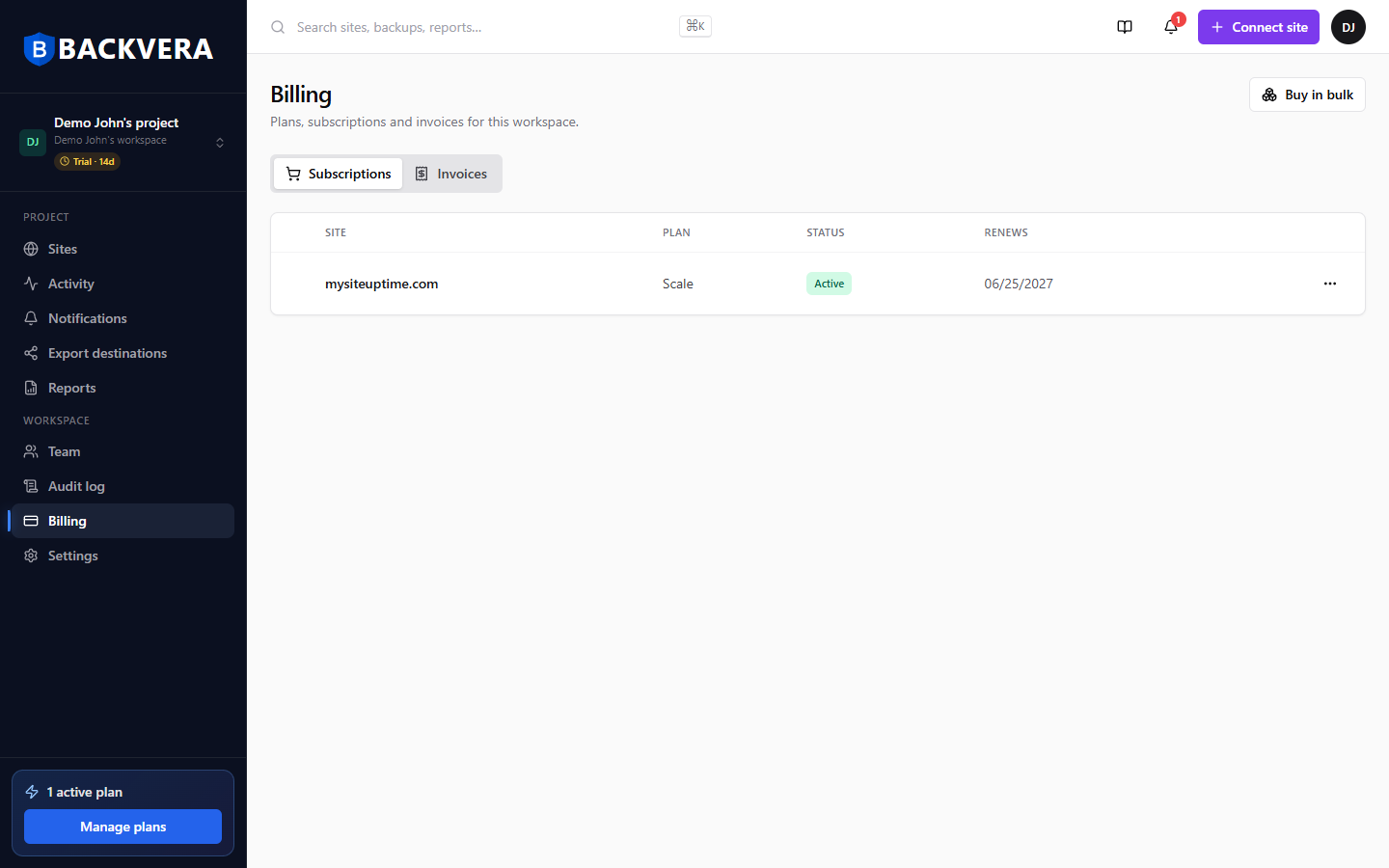
Each site runs on its own plan. You can buy a plan for a site, upgrade or downgrade it, update your payment details, or cancel – all from Billing. Buying, changing, and cancelling plans – and anything to do with payment – are limited to the workspace owner; assigning a licence to a site is also open to admins and project admins (see the table below).
Who can do what
Paying for and changing plans is owner-only. Assigning a licence – a plan you have already paid for – to a site is different: it does not spend money, so admins and project admins can do it too.
| Action | Owner | Admin | Global view | Project admin | Project view |
|---|---|---|---|---|---|
| Buy a plan | Yes | No | No | No | No |
| Upgrade a plan | Yes | No | No | No | No |
| Move to a lower plan (downgrade) | Yes | No | No | No | No |
| Cancel or resume a plan | Yes | No | No | No | No |
| Update card / payment details | Yes | No | No | No | No |
| View invoices | Yes | No | No | No | No |
| Assign, reassign, or unassign a licence | Yes | Yes | No | Their sites | No |
| See which plan a site is on | Yes | Yes | Yes | Their sites | Their sites |
“Their sites” means the projects that member is assigned to. See roles and permissions and buy in bulk, assign licences, trials, and invoices.
Buy or upgrade a plan
- Open Billing from the sidebar, or use Manage plans / the per-site Plan & subscription panel in Settings.
- Choose the site and the plan you want.
- Complete checkout. Upgrades are pro-rated and apply immediately.
Move to a lower plan
To move a site to a lower paid plan, open the billing portal from Billing (the Manage in Lemon Squeezy option) and switch the plan there. You can also cancel the current plan and buy the one you want.
A lower plan can mean less frequent backups, less storage, and shorter retention. Here is what changes:
- Backup frequency – if your schedule is faster than the new plan allows, you will be asked to choose a slower frequency the next time you save the schedule.
- Retention – if the new plan keeps backups for less time, your retention is capped to the new window. We send a “Snapshot retention will shrink” notification and wait a short grace period before older restore points are pruned. See retention.
- Storage – if the new plan has a smaller allowance and the site is already over it, new backups pause until you free space (reduce retention, or exclude large folders) or move back up. Your existing backups are kept. See storage usage.
Update your card or payment details
Open Billing and use the billing portal (Manage in Lemon Squeezy) to update your card, billing address, and tax details. Your past invoices are on the Invoices tab.
If a payment fails
If a renewal payment fails, the subscription is marked past due but your site keeps backing up while we retry the charge. Update your card in the billing portal to clear it. If the payment still cannot be collected, the subscription eventually expires and the site moves to the Free plan – your data is kept, subject to the Free plan’s retention.
Cancel a plan
From Billing, open the subscription and choose Cancel. Cancelling stops the auto-renewal; the site keeps its paid features until the end of the current billing period, and until then you can Resume it. When the period ends, the site moves to the Free plan and your backups are kept, then trimmed to the Free plan’s retention over time. See data retention.
Refunds
Need a refund? Email [email protected] and we will help – refunds are handled case by case.
Trials
New workspaces start with a 14-day trial. When it ends, any site without an assigned plan drops to Free. See buy in bulk, assign licences, trials, and invoices.
Not sure which plan fits? See Backvera plans at a glance.
Still need help? Email our team at [email protected].