When you sign in to app.backvera.com you land on the Sites screen – your home base. Here is everything on it.
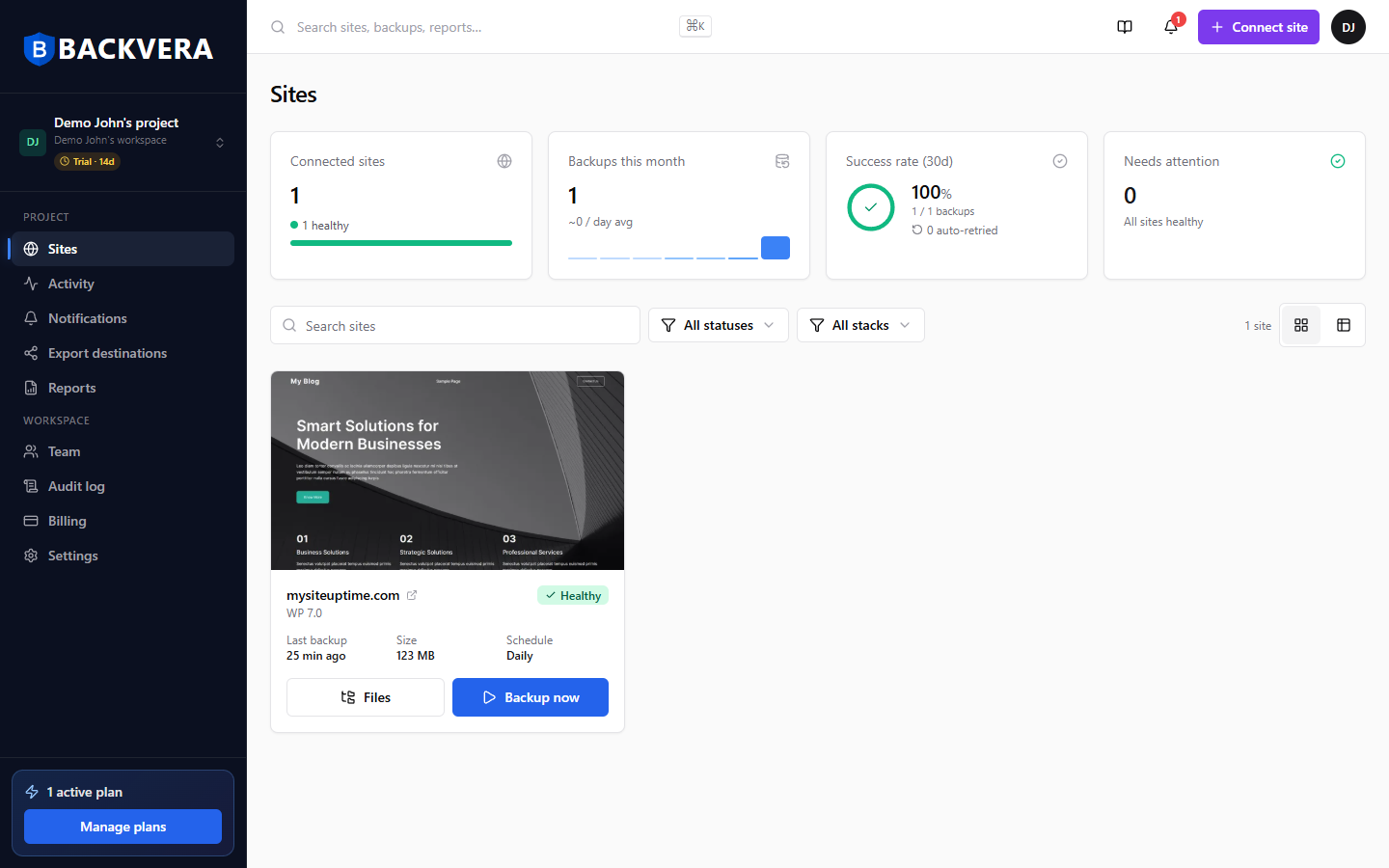
The top bar
- Search – find any site, backup, or report (or press
Cmd+K/Ctrl+K). - Connect site – start the wizard to add a new WordPress site.
- Docs – opens this help center.
- Notifications bell – your in-app feed of recent events.
- Account menu – profile and settings, team, billing, help, and log out.
The sidebar
At the top of the sidebar is the project switcher, showing your current project and your trial or plan status. Below it are two groups of links:
- Project – Sites, Activity, Notifications, Export destinations, and Reports. Everything here is scoped to the project you are in.
- Workspace – Team, Audit log, Billing, and Settings. These belong to the whole workspace.
- At the bottom, your active plans and a Manage plans shortcut.
Use the project switcher to move between projects – see Switch between projects.
Summary cards
Four cards across the top give you the health of everything at a glance:
- Connected sites – how many sites you protect, how many are healthy, and how many have security threats.
- Backups this month – the total, with a daily average and a sparkline of recent days.
- Success rate (30d) – the share of backups that succeeded, with the count and how many were auto-retried.
- Needs attention – a count of sites with security threats, or that are paused, disconnected, overdue, or never backed up (it reads “All sites healthy” when there is nothing to do).
When Backvera has confirmed threats on any of your sites, a red Security threats panel above the cards lists them, with a Review link to the Security tab of each one.
The sites list
Below the cards is your list of sites. You can:
- Switch between Card view and Table view.
- Search sites by name.
- Filter by status (All statuses) or by stack (All stacks). When a site has security threats, the status filter gets a Security threats option.
Each site shows its status badge, WordPress version, last backup, size, and schedule – plus a Staging badge when it has a staging environment, and quick actions to open Files or run Backup now.
Opening a site
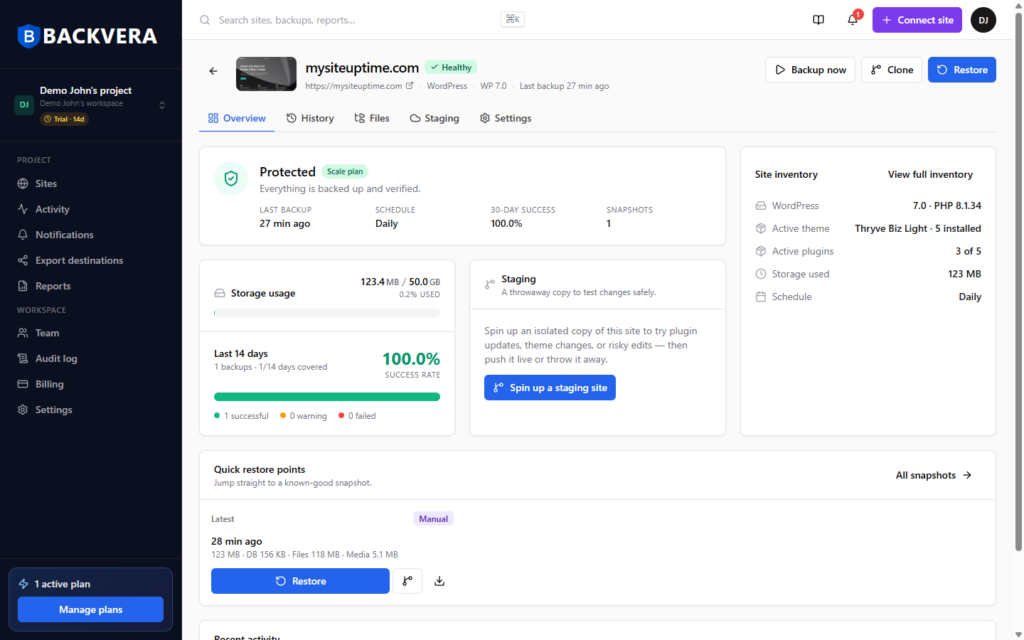
Click any site to open it. Inside you will find tabs for Overview, History, Files, Staging, Security (on the Security plans), and Settings. The Overview tab is the best starting point – it summarises protection status, storage, recent backups, and quick restore points. Learn more about site statuses.
Still need help? Email our team at [email protected].