Connecting a site is a short, guided wizard. Start it from the dashboard with the Connect site button in the top-right corner. It has four steps.
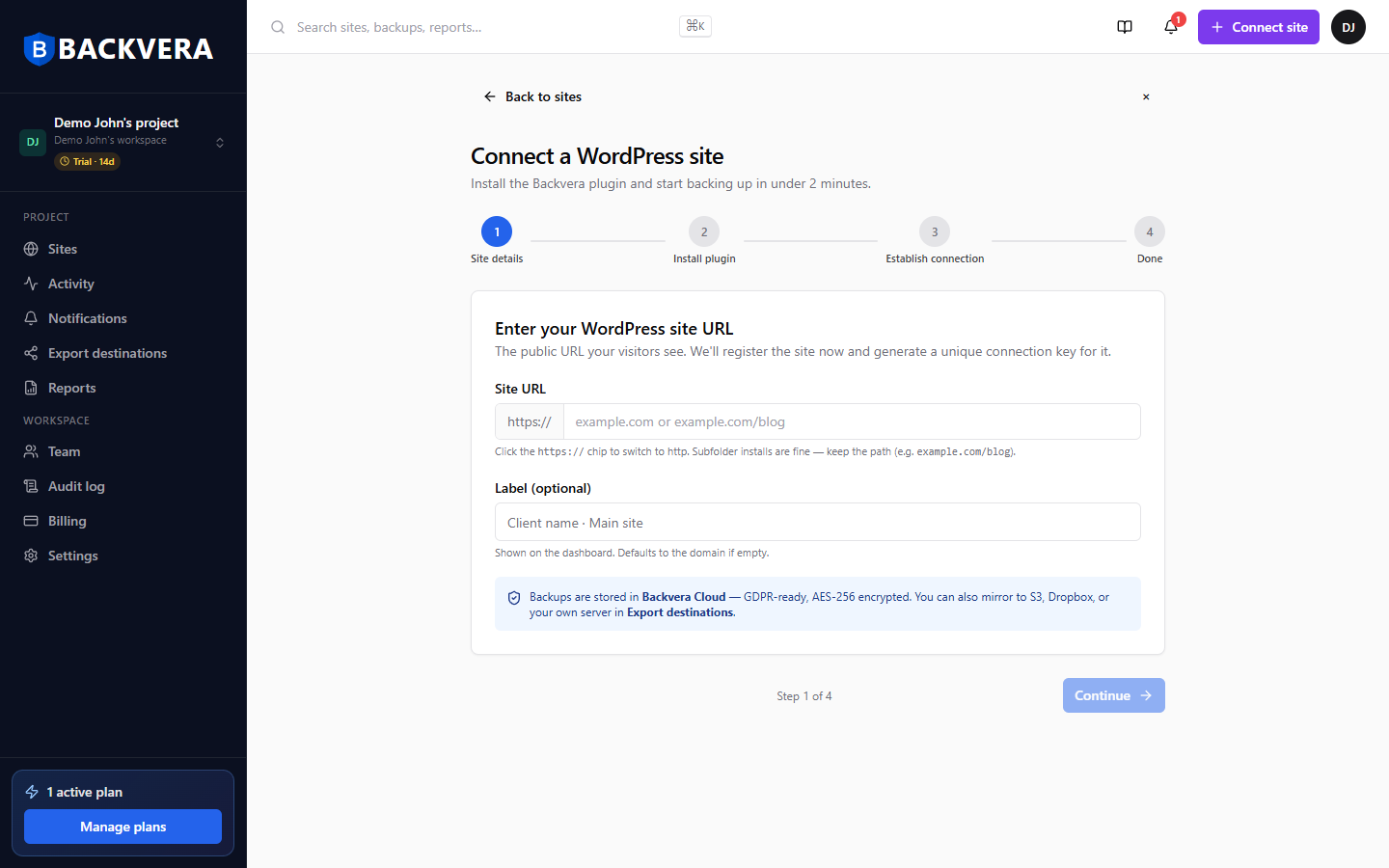
Step 1 – Site details
Enter your site’s public URL (the address visitors use). Subfolder installs like example.com/blog are fine – keep the path. Add an optional label to recognise the site later, and choose a storage region (or leave it on the project default). Backvera registers the site and generates a unique connection key for it.
Step 2 – Install the plugin
Install the Backvera plugin using whichever method suits you:
- One-click install – fastest; Backvera installs it for you.
- Download the ZIP – upload it yourself in wp-admin.
- WP-CLI – one command on the server.
Which install method should I use?
| Method | Best for | Requirements | Limitations | If it does not work |
|---|---|---|---|---|
| One-click | The fastest setup | A WordPress Administrator username and password | Cannot be used if the admin login has CAPTCHA or two-factor, or if wp-admin is blocked by a firewall | Use ZIP or WP-CLI |
| Download ZIP | Installing it yourself in wp-admin | Permission to upload a plugin in wp-admin (Administrator) | The ZIP is tied to this site; reopening the wizard rotates the key, so an old ZIP stops working | Pair manually with the connection key |
| WP-CLI | Command-line / SSH users | SSH access, WP-CLI installed, and write access to wp-content/plugins | The install URL is single-use and expires 30 minutes after it is generated | Generate a fresh command, or use ZIP |
| Manual pairing | When automatic pairing did not happen (a generic plugin copy, or a blocked handshake) | The plugin installed and active, plus the connection key | Your site must be reachable from the public internet for the connection test | Check the plugin is active and the key matches |
Step 3 – Establish connection
When the plugin activates it pairs with your account automatically and the wizard moves on by itself. If you installed from a generic copy, paste your connection key here – see Pair your site manually.
Step 4 – Done
Backvera queues your first backup right away. You can close the wizard; the dashboard tracks progress and the site turns Healthy when the first backup completes.
Not ready to finish now? Choose “I’ll connect later” and the site stays as a draft you can resume any time from the dashboard.
Still need help? Email our team at [email protected].