You can download any snapshot – or part of one – as a ZIP file, to keep a local copy or move it somewhere Backvera does not connect to directly.
What you can download
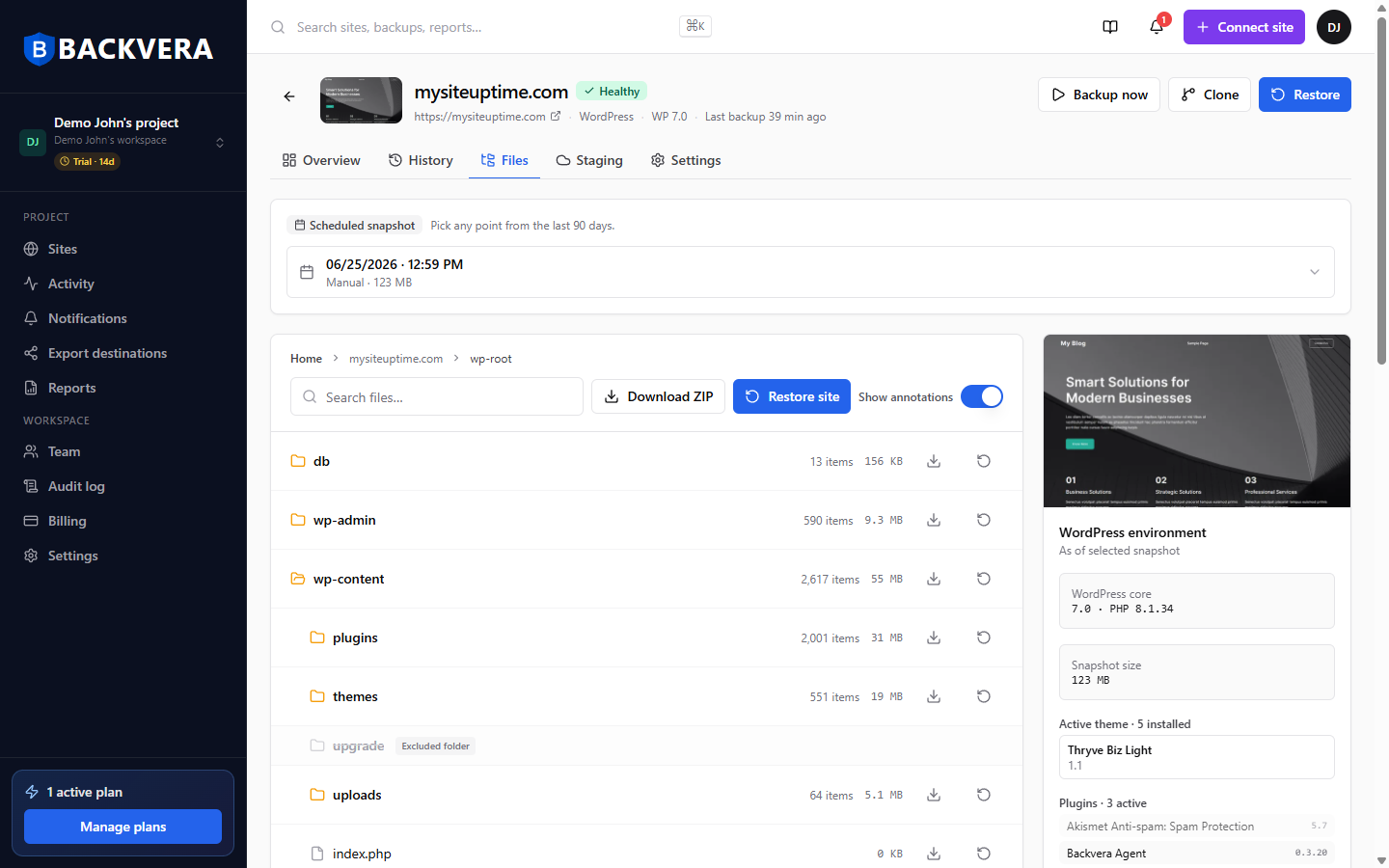
- A whole snapshot – all your files and your database.
- Specific files or folders from the Files tab – including the
dbfolder or individual database tables. - A single subsite from a WordPress Multisite network – its files and its database tables.
Steps
- Open the site’s Files tab, or use Download files as ZIP from a snapshot on the Overview tab.
- Choose what to include.
- Start the download – a progress banner appears while Backvera prepares the ZIP, then gives you a link when it is ready.
Where your download appears, and how long it lasts
A progress banner shows while Backvera prepares the ZIP, then a Download link appears when it is ready. Large ZIPs are built in the background, so you can keep working and pick the file up from the Activity area when it is done – a big site can take a few minutes.
A prepared ZIP stays available for 24 hours, then it is removed automatically. If your link has expired, just generate a fresh one.
Is the database included?
It depends on what you choose to download:
- A whole snapshot always includes your database alongside your files. You will find it in the
dbfolder, with one.sqlfile per table (for examplewp_options.sql). - A folder or single-file download includes only what you pick. To get the database, include the
dbfolder, or select individualdb/<table>.sqlfiles in the Files tab – see browse the files and database in a backup. - A single subsite download includes that subsite’s files and its database tables.
If you only need a table or two back on the live site, you can restore them directly instead of downloading – see restore specific files or database tables.
Still need help? Email our team at [email protected].