Cloning copies a snapshot to a different destination. It is how you migrate a site to a new host or domain, spin up a duplicate, or seed a staging copy.
Choose a destination
Start a restore and choose Clone, then pick where it goes:
- An existing site already registered in Backvera.
- A new SFTP/FTP target you provide credentials for.
- A Backvera managed staging environment.
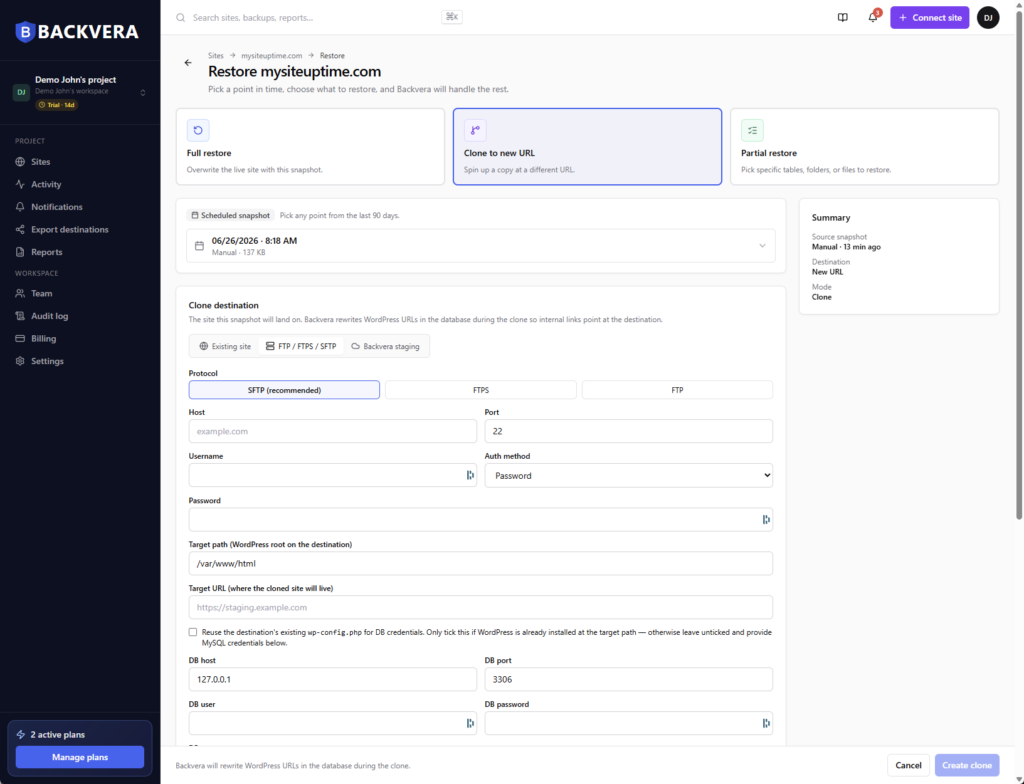
Backvera rewrites internal URLs so links, settings, and references point at the destination rather than the original site.
Add it to your dashboard
Optionally tick Add to my Backvera dashboard so the destination is registered as its own site after a successful clone – handy when you are migrating to a new home you want to keep protecting.
Track it in Activity
You can watch a clone live on screen while it runs. Afterwards, every clone – along with your other background jobs such as backups, clones, exports, and downloads – is recorded in the Activity feed in the sidebar, so you always have a history of what ran and when.
Still need help? Email our team at [email protected].