When you need to recover, Backvera gives you three ways to put a snapshot back. All of them start from the Restore button on a site.
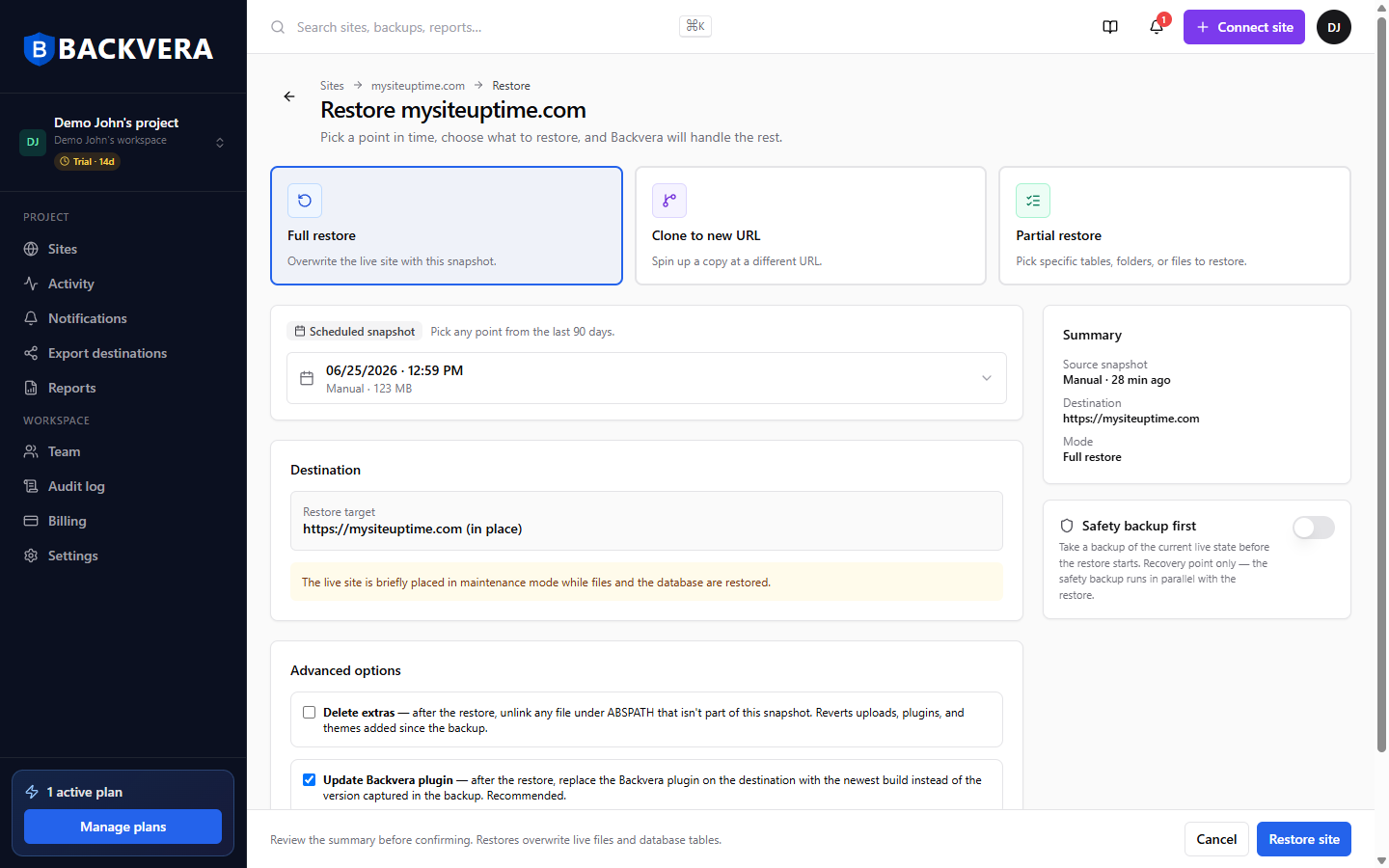
Full restore
Put a snapshot back onto the same site, exactly as it was at that point in time. Use this to undo a bad update or recover a broken site. See Restore your site to an earlier point in time.
Clone to a new location
Copy a snapshot to a different place – another site you have registered, a new SFTP/FTP target, or a Backvera staging environment. Backvera rewrites internal links so they point at the destination. Use this to migrate or duplicate a site. See Clone or migrate a site to a new location.
Partial restore
Restore just specific files or database tables instead of the whole site – handy for surgical fixes. See Restore specific files or database tables.
Before you confirm
A few options are available on the restore screen, mainly for in-place restores (full and partial):
- Safety backup first – takes a recovery-point backup of your live site before the restore starts (off by default).
- Delete extras – also removes files that are not in the snapshot, so the result matches it exactly.
- Dry run – previews exactly what would change, without writing anything.
You can follow any restore or clone live on screen, and find a record of it – with all your other background jobs – in the Activity feed in the sidebar.
Still need help? Email our team at [email protected].