You do not have to wait for the next scheduled backup – you can trigger one at any time.
Steps
- Open the site and click Backup now (top-right of the site page, or from the site card on the dashboard).
- Optionally add a short note (up to 140 characters) so you can find this snapshot later.
- Click Start backup.
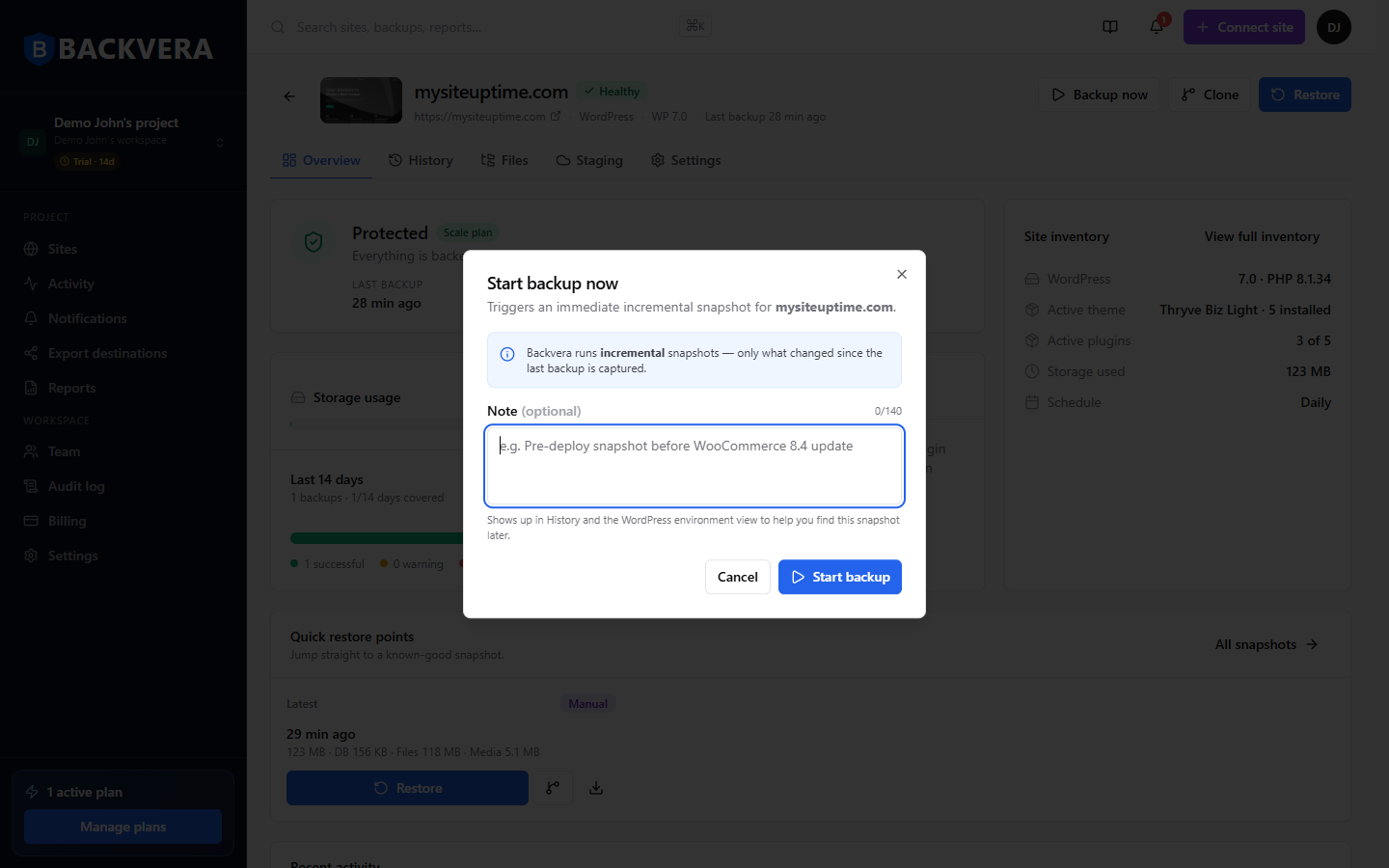
Backvera runs an incremental snapshot – only what changed since the last backup is captured. The backup runs in the background, so you can keep working and follow it on the Overview and History tabs, or in the Activity feed.
Good to know
- A manual backup does not change your schedule.
- If a site is Paused, Backup now is unavailable until you resume it.
- Your note appears in History to help you identify the snapshot.
Still need help? Email our team at [email protected].