You do not have to restore a whole snapshot to see what is inside it. The Files tab lets you browse everything captured in any snapshot – both your files and your database.
Browse the file tree
- Open the site’s Files tab.
- Pick a snapshot from the picker at the top (any point within your retention window).
- Navigate the tree, or use Search files to jump to something specific.
- Use the download or restore icon on any file or folder, or Download ZIP for the current folder.
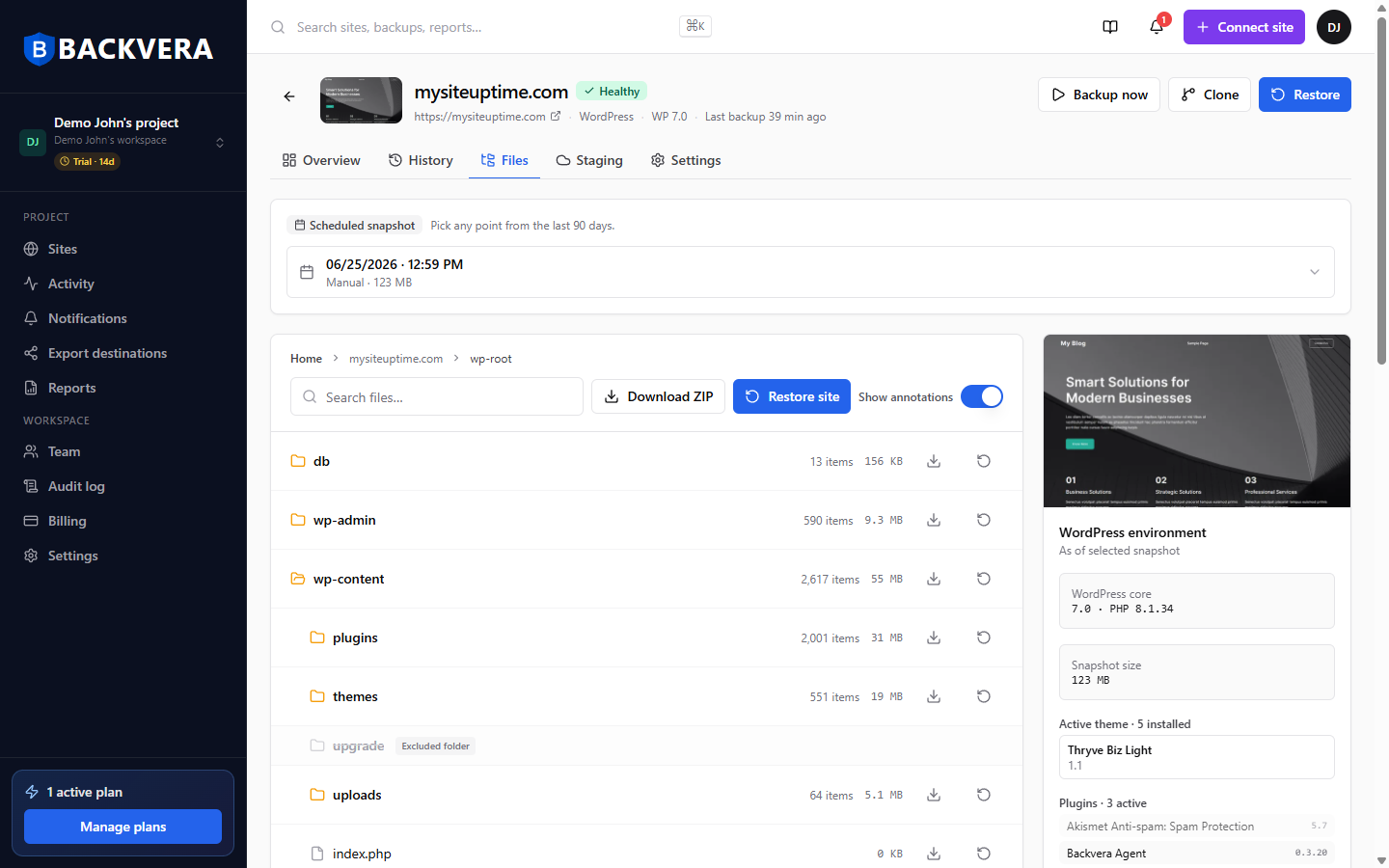
Folders excluded from backups appear greyed out and labelled Excluded folder.
Where is the database?
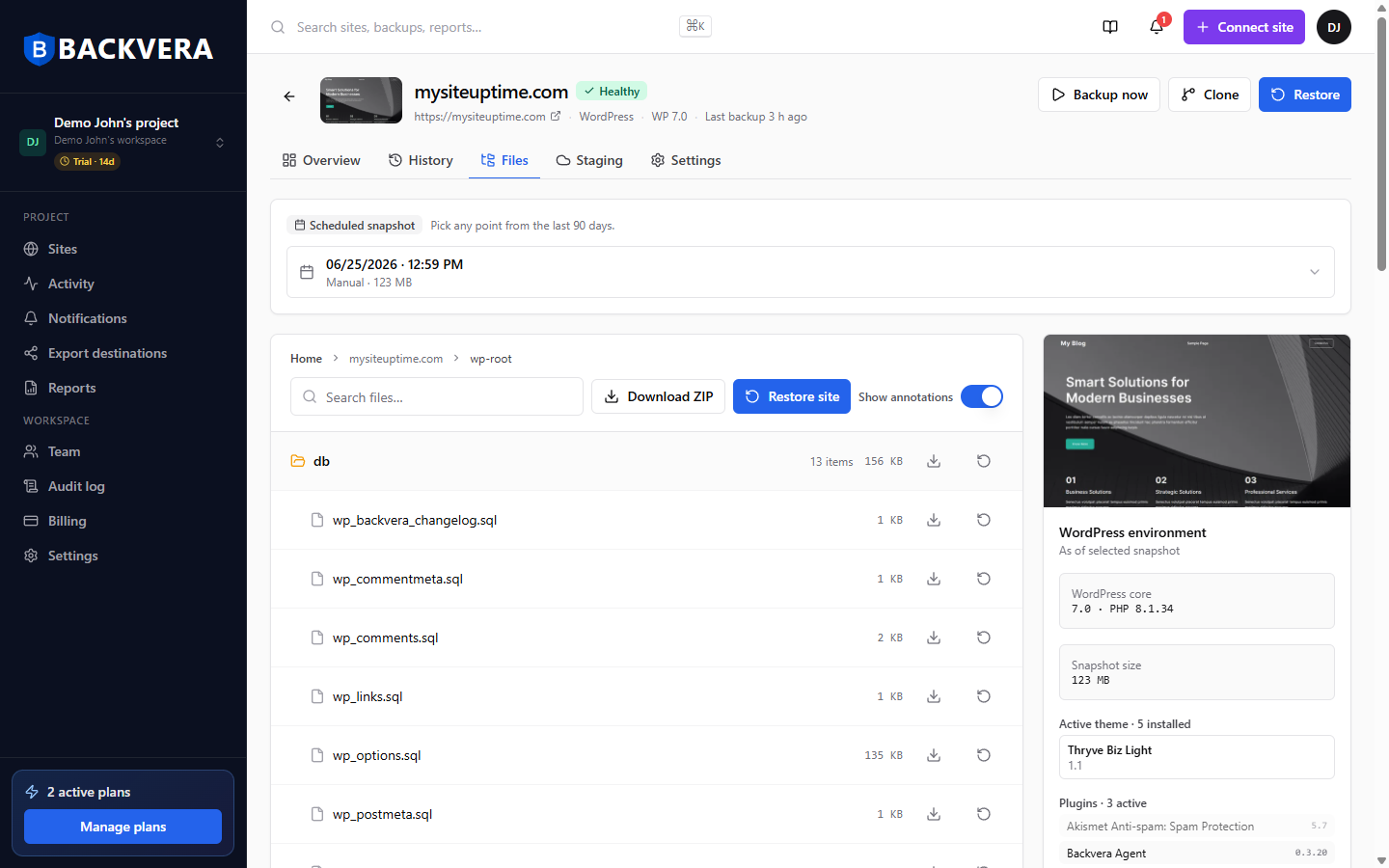
Your database is included in every snapshot under the db folder at the top of the tree. Open it to find one .sql file per table – for example wp_posts.sql, wp_options.sql, and wp_users.sql. You can download or restore an individual table file straight from here, just like any other file.
Restoring several tables together
To pick and restore several specific tables in one go – optionally alongside files – use Partial restore on the Restore tab, which has a dedicated DB tables tab. See Restore specific files or database tables.
Still need help? Email our team at [email protected].