Sometimes you only need a piece of a backup back – a few folders, or one or two database tables – without touching the rest of the site. Partial restore does exactly that.
Start a partial restore
- Open the site and click Restore.
- Choose the Partial restore mode (“Pick specific tables, folders, or files to restore”).
- Pick the snapshot to restore from.
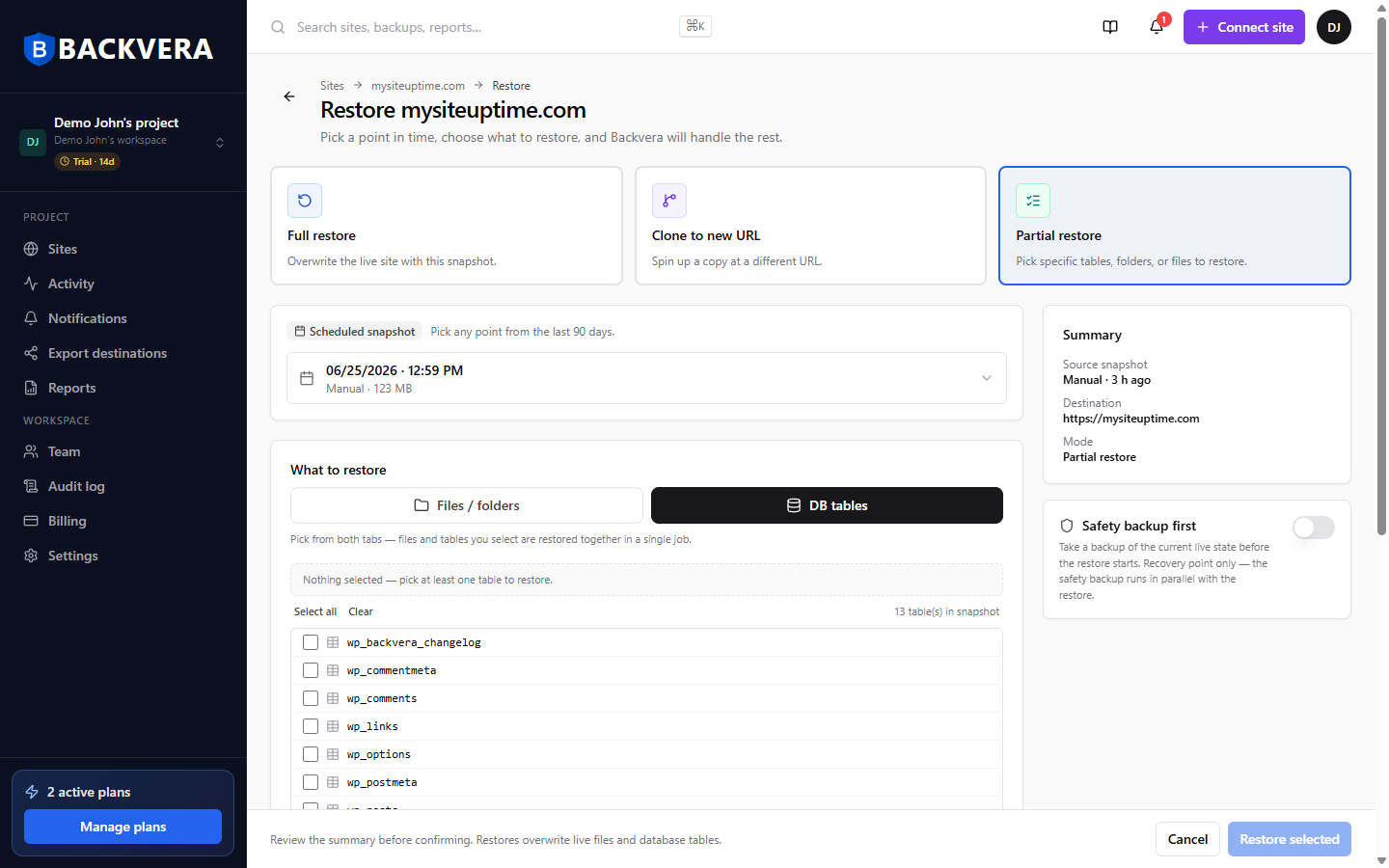
Choose what to restore
Under What to restore there are two tabs:
- Files / folders – tick the files and folders you want.
- DB tables – tick the database tables you want.
You can pick from both tabs – everything you select is restored together in a single job. Then click Restore selected.
Restoring a database table replaces its current contents with the snapshot version. Turn on Dry run in Advanced options to preview exactly which files and tables a restore would touch, without writing anything.
Take a safety backup first
Before an in-place restore begins, Backvera can take a safety backup of your current live site – a recovery point you can roll back to if the result is not what you expected. It is taken before the restore starts, so it captures a clean, consistent copy of your site as it was just beforehand. Safety backup first is off by default – turn it on before you confirm the restore whenever you want this extra recovery point.
Match the snapshot exactly (Delete extras)
When you restore folders, turn on Delete extras in Advanced options to remove files inside the folders you selected that are not part of the snapshot. Files outside the folders you picked are never touched.
Track it in Activity
You can watch a partial restore live on screen while it runs. Afterwards, every partial restore – along with your other background jobs such as backups, clones, exports, and downloads – is recorded in the Activity feed in the sidebar, so you always have a history of what ran and when.
Still need help? Email our team at [email protected].