By default, Backvera protects everything needed to rebuild your site, and skips the throwaway files that are not worth storing. You can fine-tune both, per site.
Included by default
- Your WordPress files – core, plugins, themes, and your uploads/media library.
- Your database – posts, pages, products, settings, and users.
Skipped by default
To keep backups lean and fast, Backvera automatically skips files that are regenerated on their own or add no value to a restore, such as:
- Caches – page, object, and plugin caches.
- Logs – debug and error logs.
- Temporary files – scratch and working files.
- Backups from other tools – there is no need to back up your backups.
Skipping these never affects your ability to restore a complete, working site – they are rebuilt automatically.
Include or exclude more (per site)
Open the site and go to Settings > Inclusions & exclusions to tailor exactly what each backup captures.
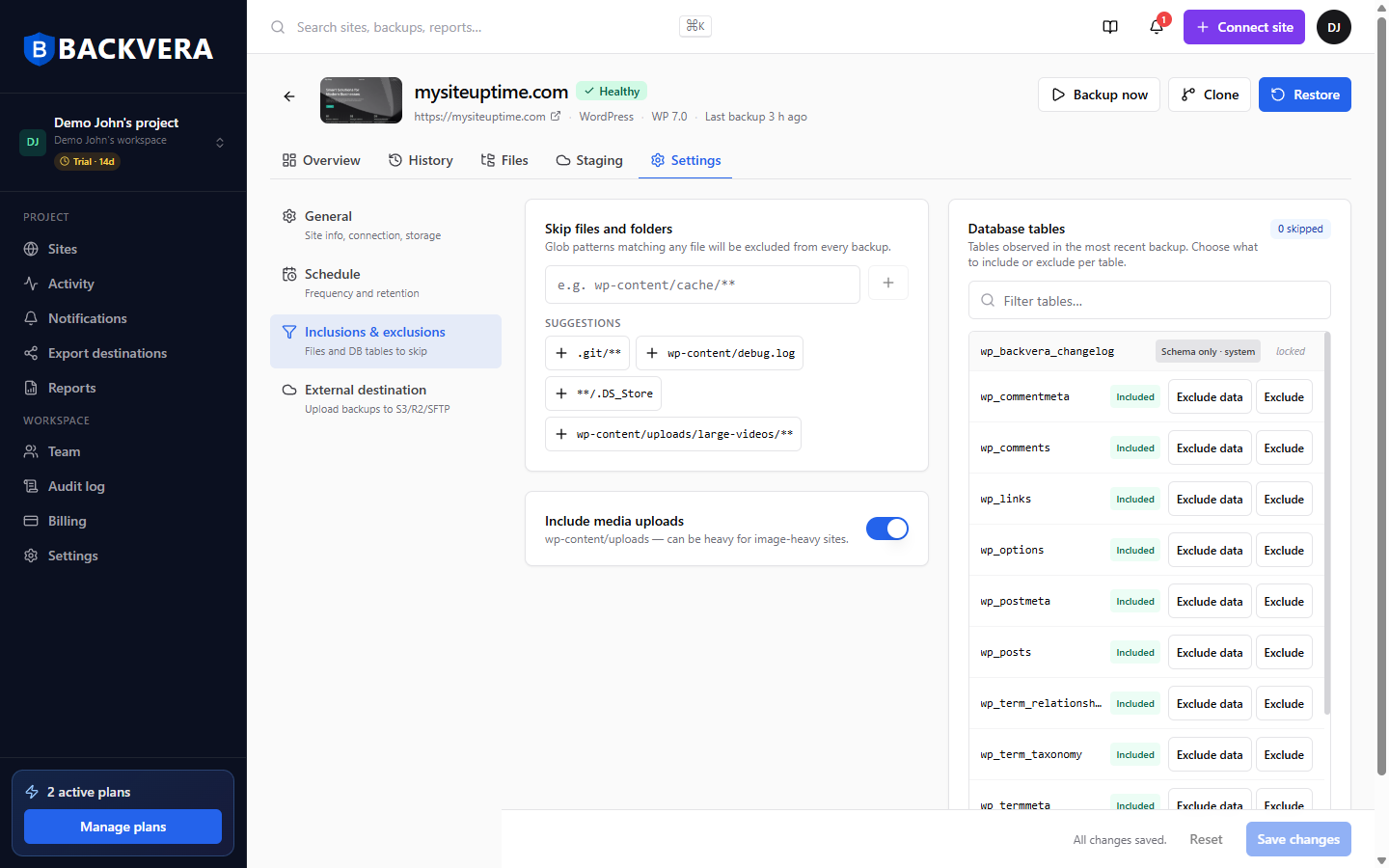
Skip files and folders
Under Skip files and folders, type a glob pattern for anything you do not want backed up and add it to the list. For example:
wp-content/cache/**Backvera also offers one-click suggestions for common cases, such as .git/**, wp-content/debug.log, and **/.DS_Store.
Include media uploads
The Include media uploads toggle controls whether your wp-content/uploads folder is backed up. Leave it on to protect your media library, or turn it off if your media is very large and stored somewhere else.
Database tables
Under Database tables (the tables seen in your most recent backup), choose what happens to each one:
- Included – backed up in full. This is the default.
- Exclude data – keep the table’s structure but skip its rows (schema only). Useful for large, rebuildable tables.
- Exclude – skip the table entirely.
System tables are marked locked and are always handled correctly, so you cannot misconfigure them.
Save your changes
Your edits are not applied until you click Save changes at the bottom of the page. Once they are stored you will see an All changes saved confirmation, and the new rules take effect from the next backup onward.
Excluding large folders you do not need – or dropping the data from heavy, rebuildable tables – is also a quick way to lower a site’s storage usage.
Still need help? Email our team at [email protected].