A full restore puts a chosen snapshot back onto the same site, returning it to exactly how it was at that moment. It is the fastest way to undo a bad update or recover a broken site.
Steps
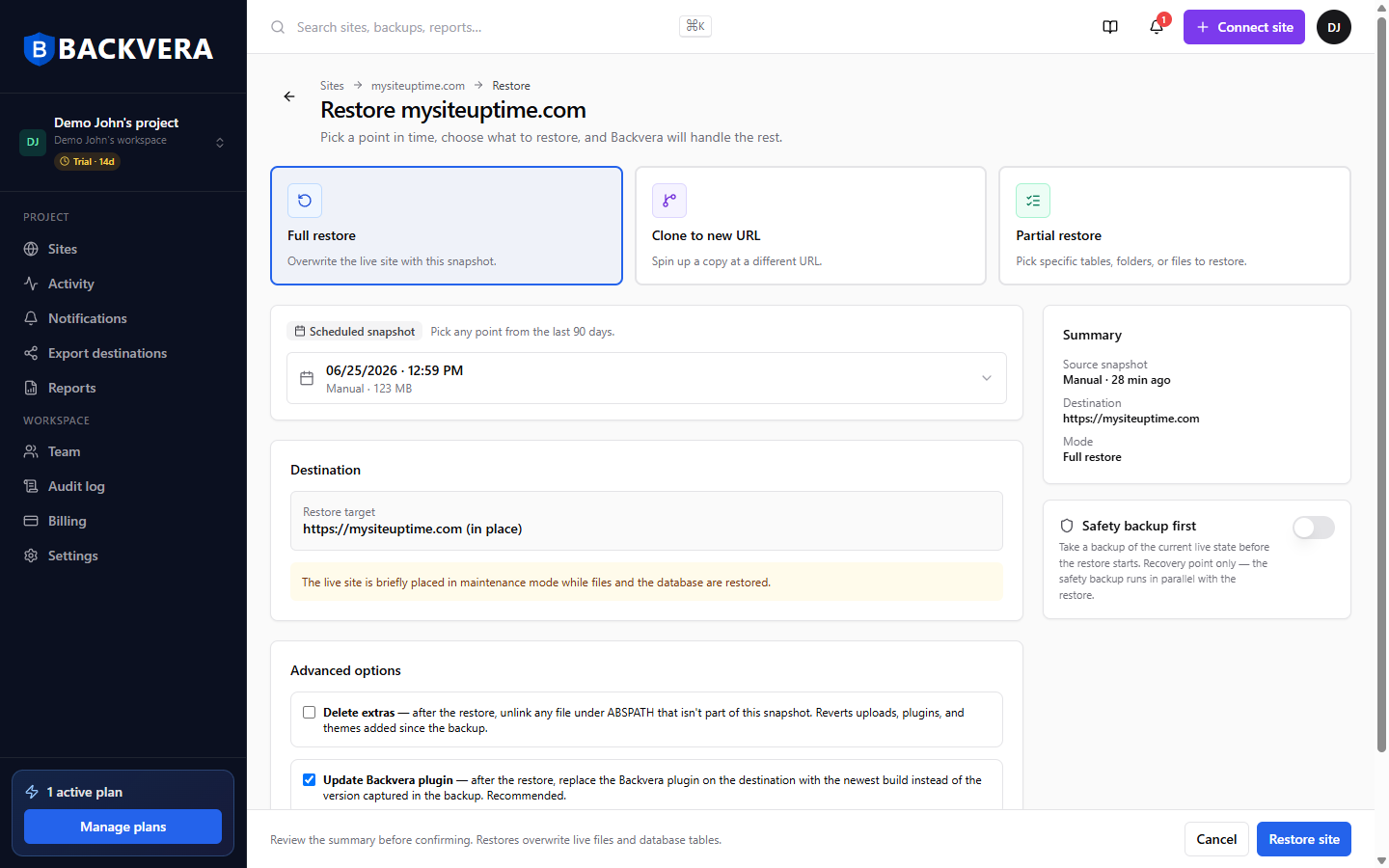
- Open the site and click Restore – or pick a snapshot from History or the Quick restore points on the Overview tab.
- Choose the snapshot – the point in time you want to return to.
- Review the summary and confirm.
- Watch the live progress as Backvera restores your site.
The restore is prepared on an off-host worker, so your site keeps serving visitors while Backvera works, then puts files and database into place. Caches are cleared automatically afterwards so your restored site shows the right content.
Not sure which snapshot to pick? Each snapshot in History shows its time, size, and any note you added when it was created.
Take a safety backup first
Before an in-place restore begins, Backvera can take a safety backup of your current live site – a recovery point you can roll back to if the result is not what you expected. It is taken before the restore starts, so it captures a clean, consistent copy of your site as it was just beforehand. Safety backup first is off by default – turn it on before you confirm the restore whenever you want this extra recovery point.
Match the snapshot exactly (Delete extras)
By default a restore puts back the files in the snapshot but leaves any newer files in place. Turn on Delete extras in Advanced options to also remove anything under your WordPress root that is not part of the snapshot – reverting uploads, plugins, and themes added since the backup, so the site matches the snapshot exactly.
Delete extras is destructive. Use Dry run (also in Advanced options) first to preview exactly which files and tables a restore would touch, without writing anything.
Track it in Activity
You can watch a restore live on screen while it runs. Afterwards, every restore – along with your other background jobs such as backups, clones, exports, and downloads – is recorded in the Activity feed in the sidebar, so you always have a history of what ran and when.
Still need help? Email our team at [email protected].