You can limit your workspace to specific email domains, so only people with an approved email – for example @acme.com – can be invited or auto-provisioned through SSO.
Set allowed domains
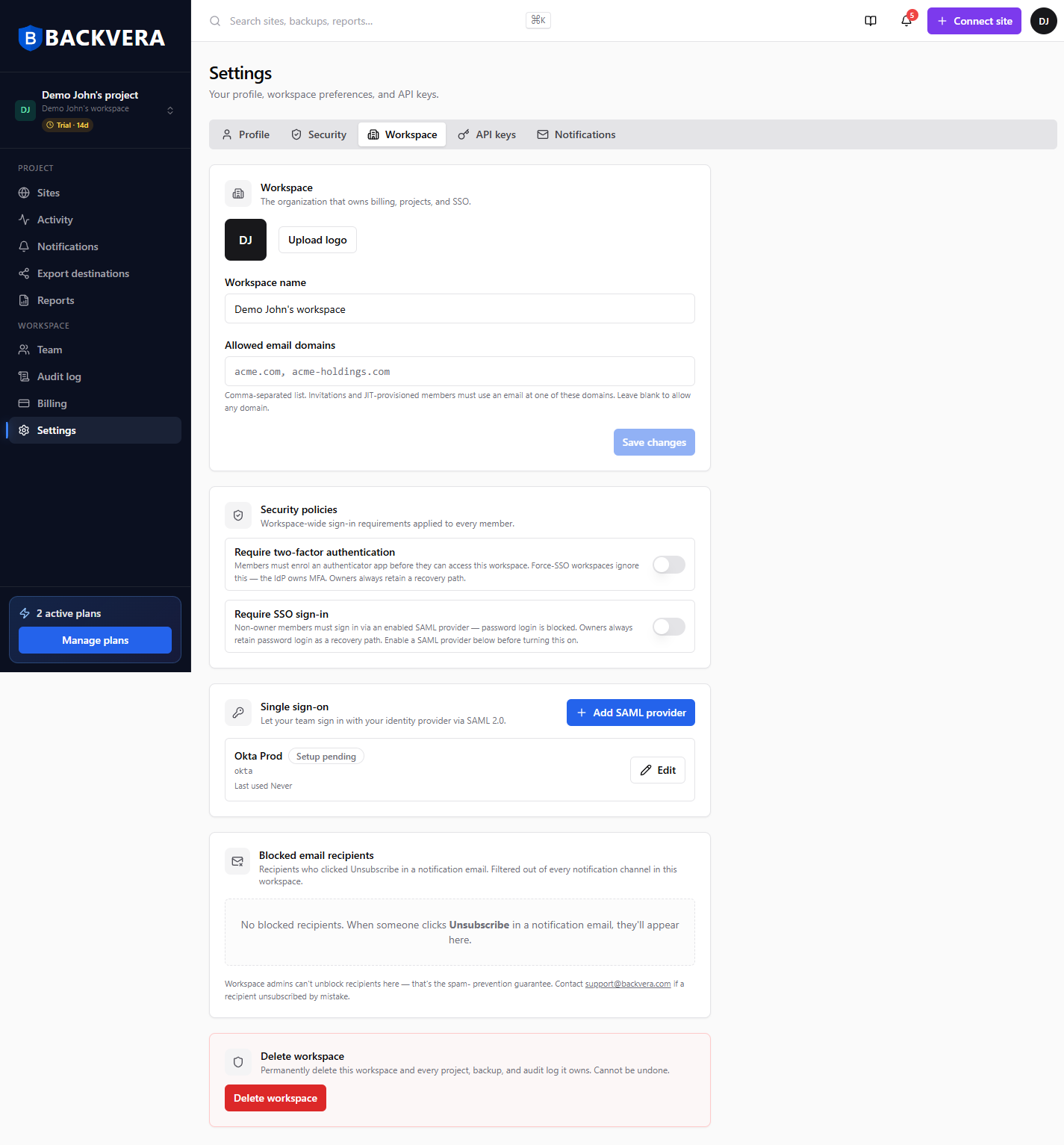
- Go to Settings > Workspace.
- In Allowed email domains, enter a comma-separated list of bare domains (for example:
acme.com, acme.co.uk). Nohttps://and no wildcards. - Click Save changes.
What the restriction does
- New invitations must use an email at one of the allowed domains.
- Members provisioned automatically through SSO (just-in-time) must also match.
- It is forward-only – turning it on never removes members who are already in the workspace.
Leave the field blank to allow any domain. Only Owners and Admins can change this.
Pair this with roles and, for stronger control, required two-factor authentication or SSO.
Still need help? Email our team at [email protected].