Bring colleagues into your workspace so they can help manage sites. Each member has a role that controls what they can see and do.
Invite a member
- Open Team from the sidebar.
- Click Invite.
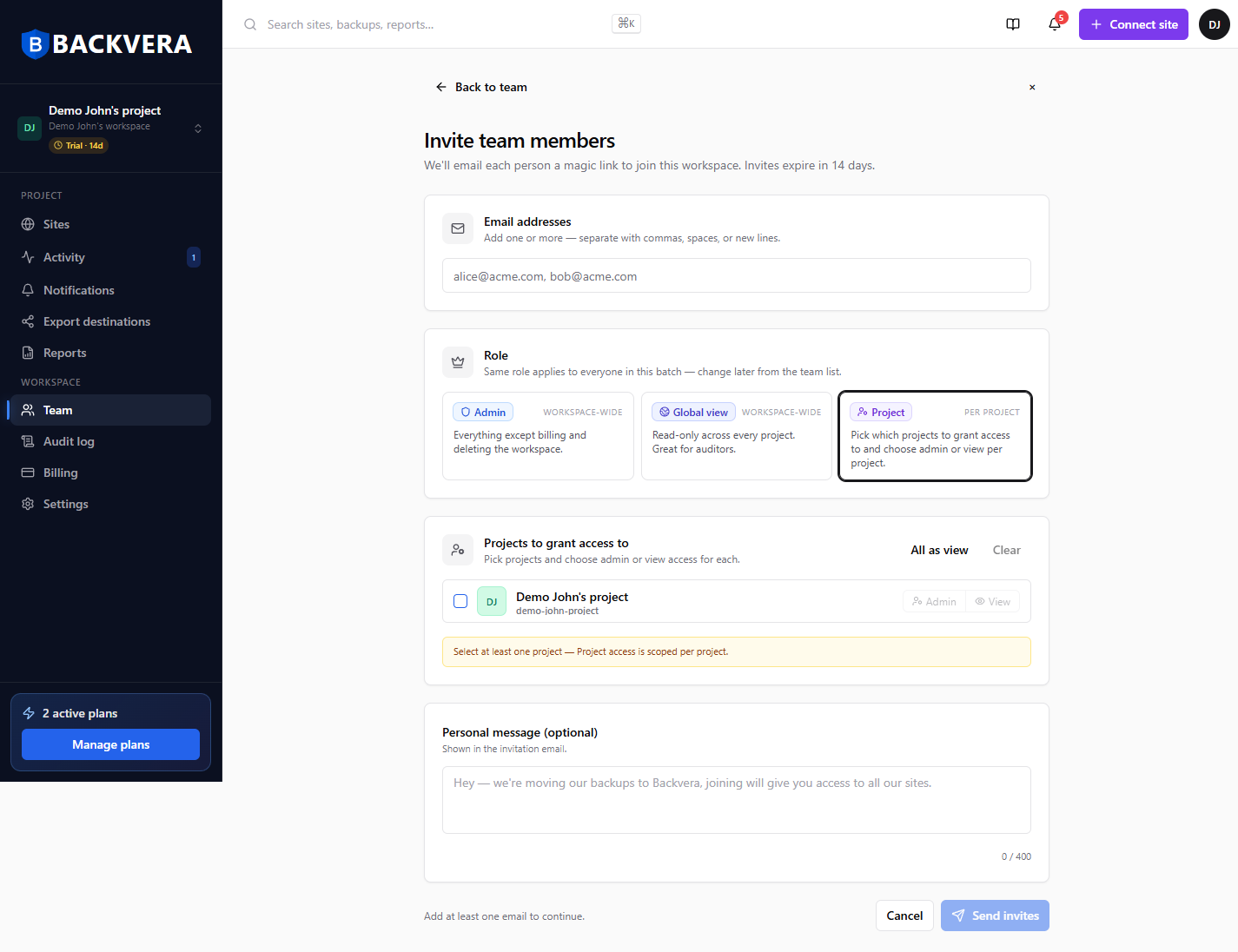
- Enter their email and choose a role.
- Send the invite – they receive an email to accept and set up their account.
Roles
A member’s role sets what they can access. There are workspace-wide roles and project-scoped roles.
Workspace roles
- Owner – full control of the workspace. The only role that can buy, change, and cancel plans, transfer ownership, and delete the workspace. There is one owner at a time.
- Admin – can manage the team (invite, edit, and remove members) and create and manage every project and site, including assigning licences to sites – but cannot buy, change, or cancel plans, transfer ownership, or delete the workspace.
- Global view – read-only access to every project and site in the workspace. Sees everything, changes nothing.
Project roles
Project roles are scoped per project – when inviting, choose the Project role, then grant admin or view on each project. The member only sees the projects they are added to:
- Project admin – full management of the project(s) they are assigned to and the sites inside them – running backups, restoring, and changing settings – with no access to other projects.
- Project view – read-only access to the project(s) they are assigned to.
A member can hold different project roles on different projects – for example, Project admin on one client’s project and Project view on another.
Permissions at a glance
| Capability | Owner | Admin | Global view | Project admin | Project view |
|---|---|---|---|---|---|
| Buy, change, or cancel plans; view invoices | Yes | No | No | No | No |
| Assign a licence to a site | Yes | Yes | No | Assigned only | No |
| Transfer ownership / delete workspace | Yes | No | No | No | No |
| Manage team and member roles | Yes | Yes | No | No | No |
| Workspace settings and security (2FA, SSO, allowed domains) | Yes | Yes | No | No | No |
| View the audit log | Yes | Yes | No | No | No |
| Create projects | Yes | Yes | No | No | No |
| Manage sites: backups, restores, staging, destinations, reports | All projects | All projects | No | Assigned only | No |
| View projects and sites | All projects | All projects | All projects | Assigned only | Assigned only |
"Assigned only" means the member sees and works in just the project(s) they were added to. Note that Owner is never picked from the role list when inviting – it moves only by Transfer ownership (below).
Only the Owner can pay for and change plans, see invoices, transfer ownership, or delete the workspace. Everything else – inviting teammates, connecting sites, backups, restores, staging, and assigning licences to sites – is available to Admins and to Project admins within their projects. See who can do what in billing.
Manage members
You can change a member’s role or remove them at any time, and resend a pending invite, from the Team page.
Transfer ownership
The workspace owner can transfer ownership to another member from the Team page.
Still need help? Email our team at [email protected].