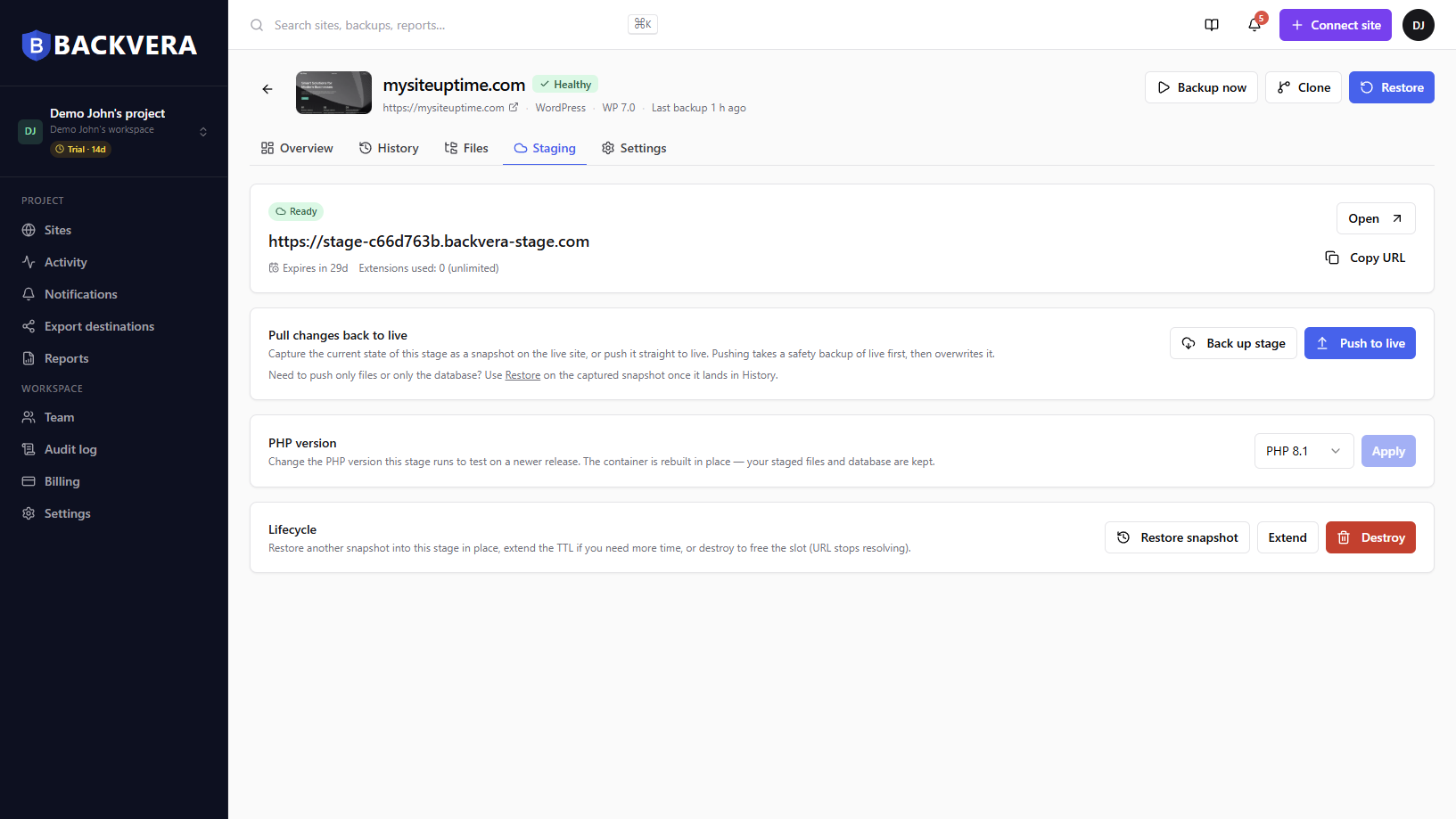
When you are happy with your staging site, push-to-live copies it over your production site in one guided step.
Steps
- On the Staging tab, choose Push to live.
- Review the confirmation. By default Backvera takes a safety backup of your live site first – you can skip it, but keeping it is recommended.
- Confirm to start, then watch progress on the push page.
What happens during a push
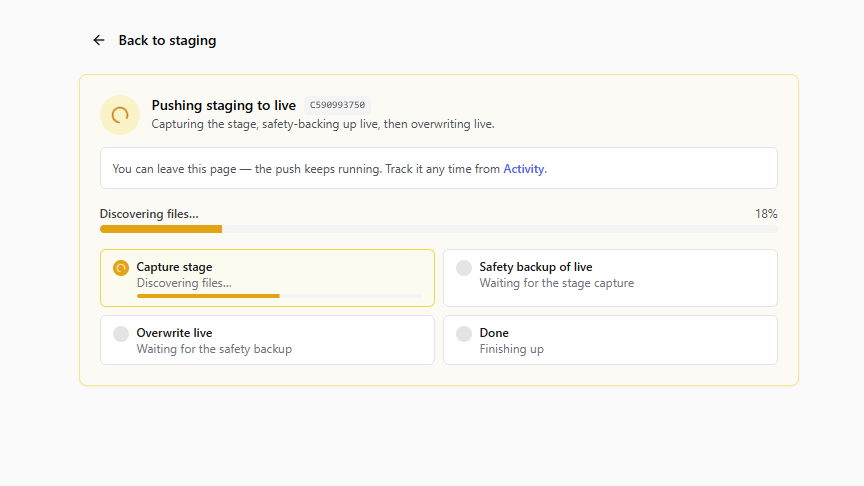
A push runs as one connected operation: Backvera first captures your current staging site into a snapshot (saved to your site’s History and marked with a Stage label), then takes the optional safety backup of your live site, and finally overwrites live with that capture.
Because a safety backup is taken first (unless you skip it), you can always roll your live site back if the pushed changes are not what you expected.
A push runs in the background, so you can leave the page and follow it in the Activity feed – it appears there as a single Push to live task.
Still need help? Email our team at [email protected].