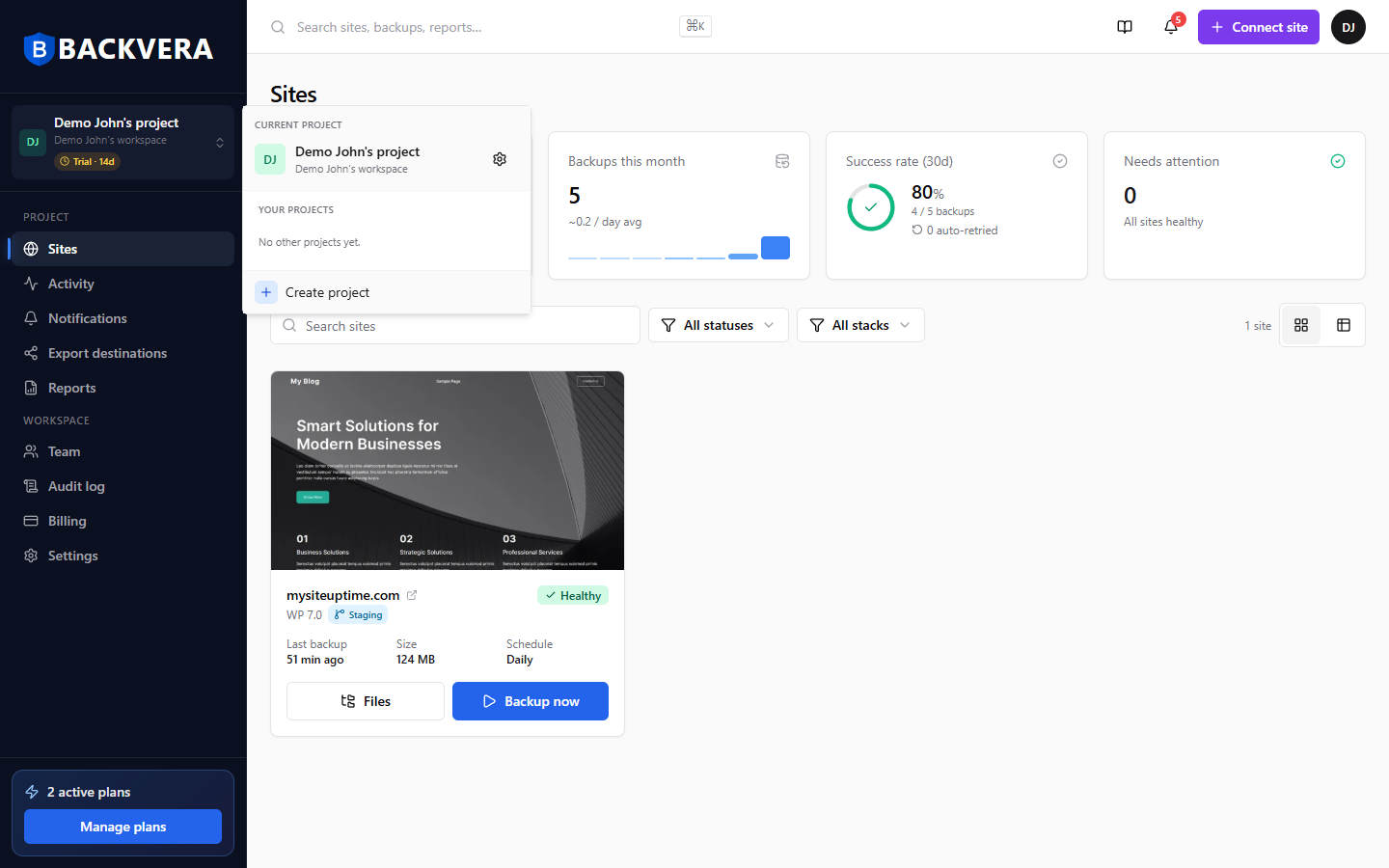
Your sidebar shows one project at a time. The project switcher at the top of the sidebar lets you move between projects, create a new one, or jump to a project’s settings.
Switch to another project
- Click the project switcher at the very top of the sidebar – it shows your current project and its workspace.
- Under Your projects, pick the project you want to work in.
- The dashboard reloads into that project.
What changes when you switch
Switching changes the project-scoped parts of the app to the selected project:
- The Sites list, Activity, Notifications, Export destinations, and Reports show data for the active project only.
- Workspace areas – Team, Audit log, Billing, and Settings – stay the same, because they belong to the whole workspace, not one project.
Each project has its own colour tile, shown in the switcher and the sidebar, so you can tell at a glance which one you are in.
Create a project from the switcher
The switcher also has a Create project button – a quick way to start a new project without leaving the page. See Organize sites with projects for what you can configure.
Open project settings
The Project settings link in the switcher opens the current project’s settings – its name, colour, defaults for new sites, and whitelabel branding.
You only see the projects you have access to. A member with project-scoped access sees just the projects they were granted – see roles and permissions.
Still need help? Email our team at [email protected].