A Backvera staging site is a full working copy of your production site, published on a public URL. Backvera puts a password prompt in front of it by default, so search engines and anyone who guesses the URL are kept out – including any content you have not published yet.
The prompt is applied by Backvera in front of the stage, not by a file inside the staged WordPress install. It therefore cannot ride a push-to-live back into your production site, and it keeps protecting the stage even while a restore into it is still running.
Where to find the credentials
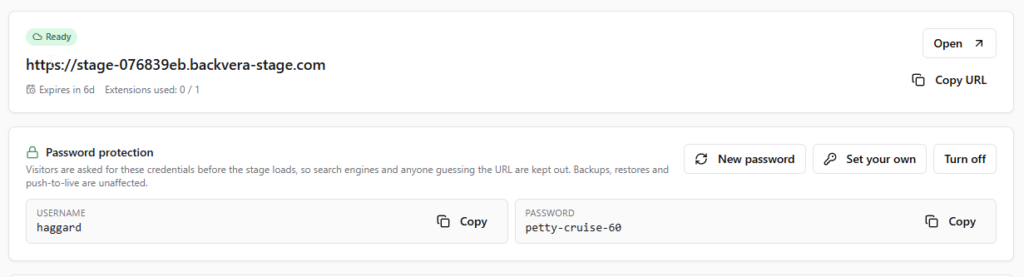
Open the site’s Staging tab. The Password protection card shows the Username and Password for the stage, each with a Copy button. Anyone you share the staging URL with enters these in the browser prompt that appears before the site loads.
Backvera generates readable credentials rather than random strings – something like monroe-hendrix-42 – because a stage password is usually read off a screen and typed into a prompt, or dictated to a colleague.
Rotate the password
Click New password. Backvera generates a fresh username and password, shows them straight away, and applies them to the stage within a few seconds. The previous credentials stop working – use this when you have shared the stage with someone who no longer needs access.
Set your own credentials
Click Set your own to choose the username and password yourself.
- Enter a Username. Letters, digits, dot, underscore, and dash only, up to 64 characters.
- Enter a Password. Between 8 and 128 characters, with no spaces.
- Click Save credentials.
You can change one half on its own: leave the Password blank to change only the username, and the current password is kept. If the stage is currently unprotected, saving your own credentials also turns protection on.
Turn protection off, and back on
Turn off publishes the stage openly, so anyone with the URL can browse a full copy of your site. Turn on protects it again with a freshly generated credential, or use Set your own to pick one.
You can also decide this up front. The Password-protect the stage URL checkbox on the create form is ticked by default; unticking it publishes the stage open from the start.
What password protection does not affect
- Backing up the stage, restoring another snapshot into it, and pushing the stage to live all keep working normally.
- Your live site is never touched. The password belongs to the staging copy only, and no visitor to your production site is ever prompted.
- Scheduled backups of your production site are unaffected.
Good to know
- A change applies to the stage within a few seconds. Until it lands, the previous password still works.
- Changing a stage’s PHP version keeps its password, so you do not need to re-share credentials after a version switch.
- Team members with view-only access to the site can see the credentials, so they can open the stage, but they cannot change or remove them.
- Stages are temporary and expire according to your plan. See Spin up a staging site and Push staging changes to live.
Still need help? Email our team at [email protected].