Projects group the sites in a workspace – perfect for separating clients, brands, or teams. Each project has its own colour, default settings, and client-facing branding.
Create a project
- Open the project switcher at the top of the sidebar.
- Choose to create a new project, and give it a name and a colour tile.
- Add new sites to it, or move existing sites into it.
Set up a project
Open Project settings (Project in the sidebar) to configure everything about a project.
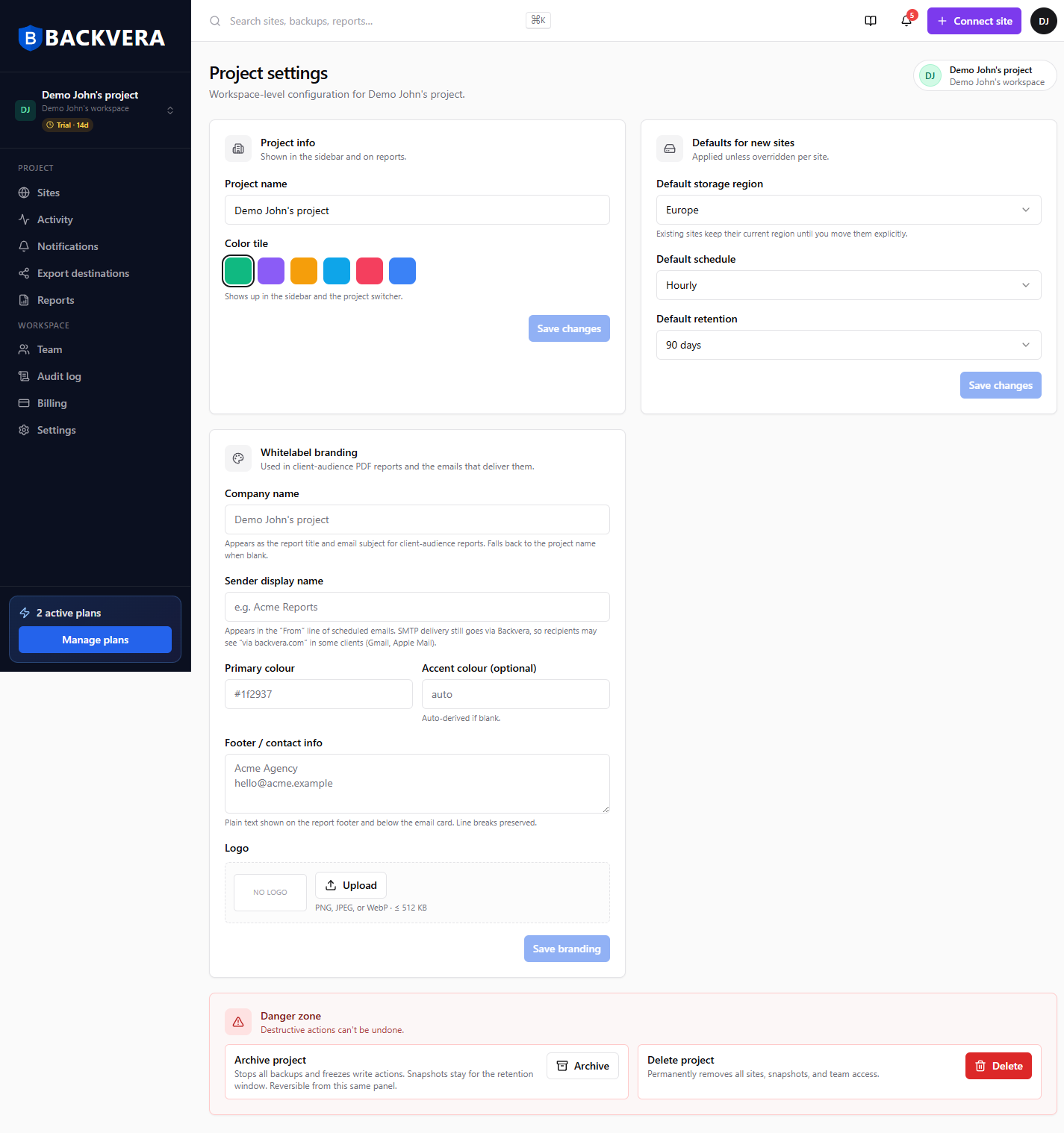
Project info
The project name and a colour tile – both shown in the sidebar, the project switcher, and on reports, so projects are easy to tell apart.
Defaults for new sites
A default storage region, schedule, and retention that are applied to new sites you add to this project, unless you override them per site. Existing sites keep their current settings until you move them explicitly.
Whitelabel branding
A company name, sender display name, brand colours, footer/contact text, and a logo – used on the client-facing PDF reports and the emails that deliver them. See client reports for how these appear.
Switch between projects
Use the project switcher at the top of the sidebar to move between projects at any time. See Switch between projects for what changes when you do.
Archive or delete a project
The Danger zone in Project settings has two destructive actions:
- Archive – stops all backups and freezes changes for the project, but keeps its snapshots for their retention window. It is reversible from the same panel.
- Delete – starts permanent deletion of the project and all of its sites, snapshots, and team access. There is a 30-day grace window during which support can recover it; after that it is removed for good. See data retention.
Related: roles and permissions and the workspace audit log.
Still need help? Email our team at [email protected].