Backups get all the attention, but the moment that actually matters is the restore. And most restores fail the only test that counts: could a normal person on your team run one at 4pm on a Friday, without shell access, a runbook, or a knot in their stomach? If a restore needs a maintenance window and the one engineer who knows the incantation, it is not a restore – it is a migration with a deadline. This is how Backvera keeps restores calm.
TL;DR. A trustworthy restore is safe to run any time: you can preview exactly what it will change (dry run), it takes a rollback point first (safety backup), it does not knock your site offline while it works, and you can restore the whole site, a few files, or a single database table. Every restore is visible in the Activity feed, and you can rehearse one on staging before you ever need it for real.
A backup is only as good as its restore
Almost every backup horror story is really a restore story: the backup existed, but it could not be restored cleanly, or restoring it needed skills and downtime nobody had budgeted for. A backup you cannot calmly restore is just storage. So the useful question is not “do you have backups?” but “how relaxed are you about restoring one?”
Think in RTO and RPO
Two ideas from disaster recovery make this concrete:
- RPO (recovery point objective) is how much work you can afford to lose – which comes down to how often you back up.
- RTO (recovery time objective) is how quickly you need to be back – which comes down to how fast and how simple your restore is.
Good backups shrink your RPO. Good restores shrink your RTO. You need both, and the restore side is the one most tools quietly neglect.
Preview before you commit
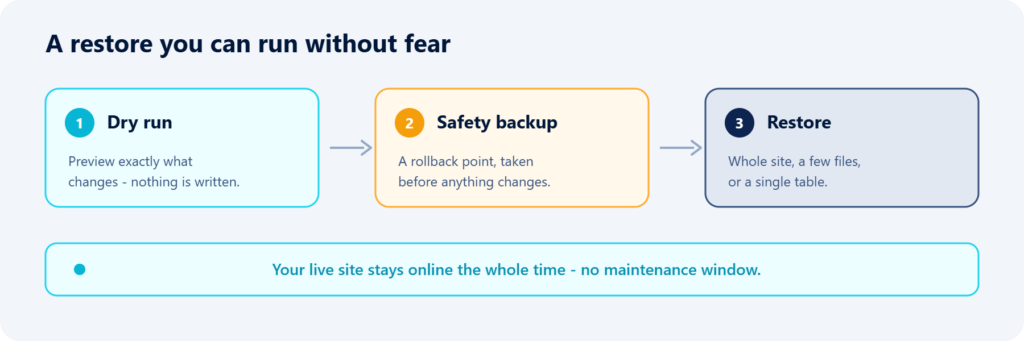
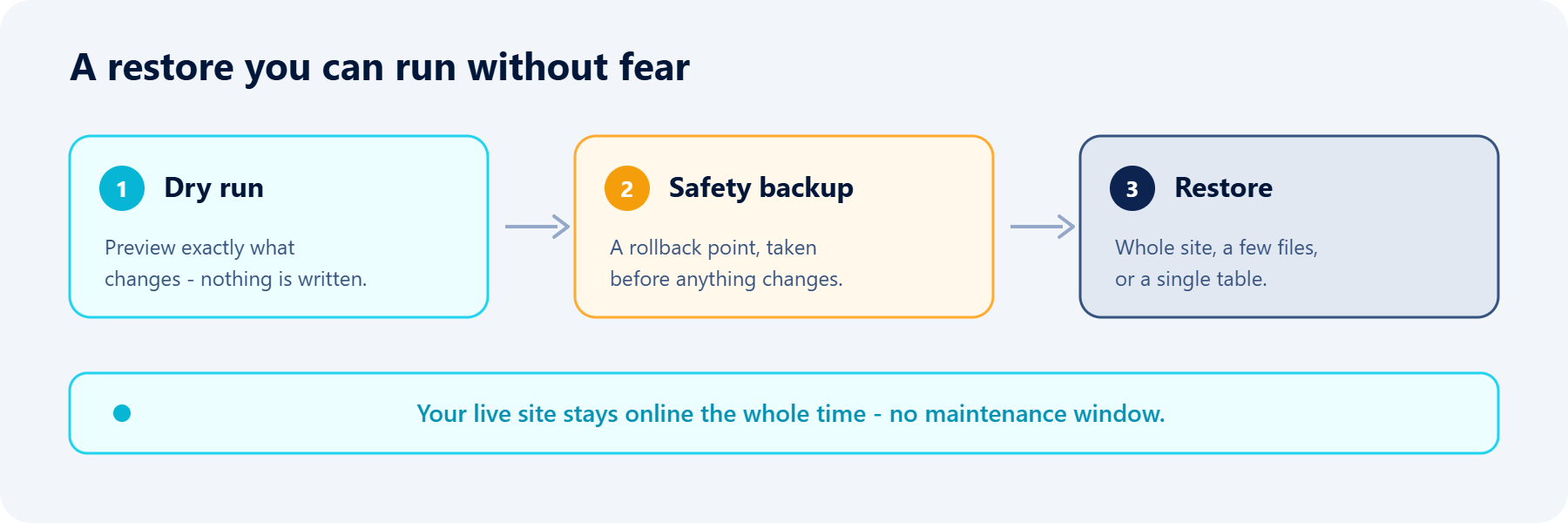
The scariest thing about a restore is not knowing what it will do. A dry run removes that fear: it shows you exactly which files and database tables the restore would touch, without writing a single byte. You read the change and agree to it, turning “I think this is the right snapshot” into “I know it is”.
A safety net, automatically
Turn on safety backup first and Backvera captures a fresh recovery point of your current site before it changes anything. If the restored version is not what you hoped, you roll straight back to the moment before you started. A restore should never be a one-way door – being able to undo it is what makes it safe to try.
No downtime while it works
The restore is prepared off your host, so your live site keeps serving visitors while Backvera does the heavy lifting, then puts the files and database into place. Caches are cleared afterwards, so visitors see the restored content immediately rather than a stale page. There is no “we will be back in 20 minutes” banner.
Restore exactly what you need
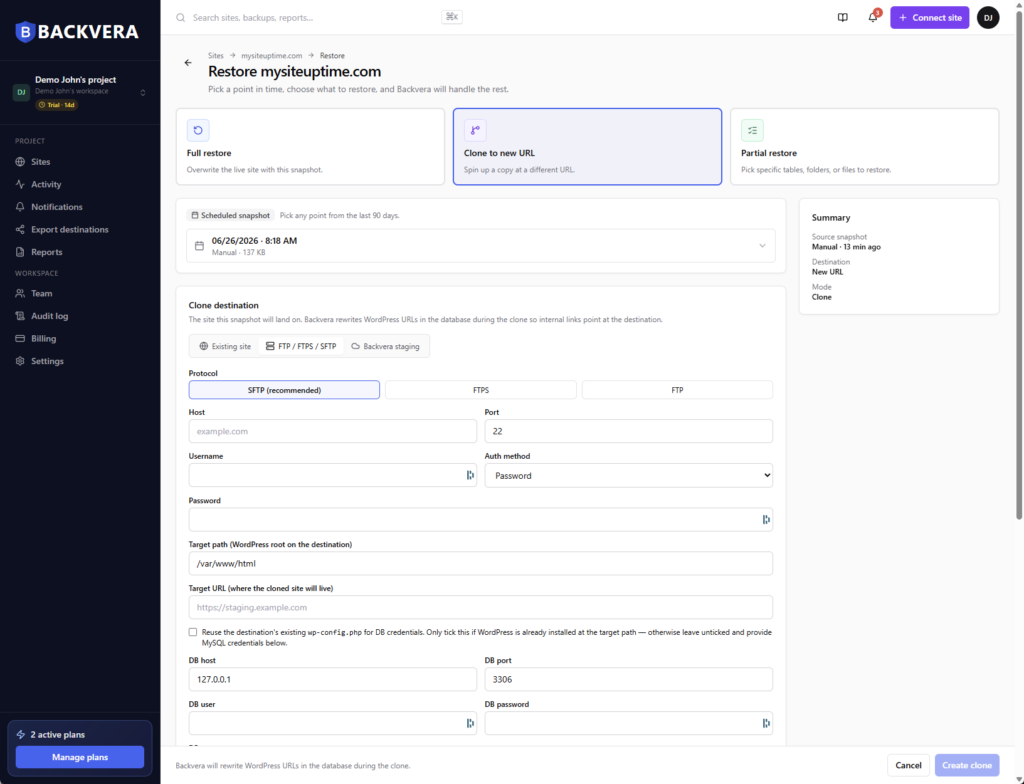
Not every problem needs a full rollback. Backvera gives you three shapes of restore, so the fix can match the size of the mistake.
| Restore type | What it does | Best for |
|---|---|---|
| Full restore | Puts the whole site back to a chosen point in time | A broken update, or a site that needs to go back as a whole |
| Partial restore | Restores just selected files, folders, or database tables | Recovering one deleted page, a settings table, or a few files without touching the rest |
| Clone | Copies a snapshot to a different location – another site, an SFTP target, or staging | Checking a restore first, migrating, or spinning up a copy |
Restoring a single database table replaces that table’s contents with the snapshot version and leaves everything else alone – the surgical option when only one thing went wrong.
Match the snapshot exactly, when you want to
By default a restore puts back what is in the snapshot but leaves any newer files in place. When you need the site to match a moment exactly – say, to strip out files added by a compromise – turn on Delete extras to also remove anything that is not part of the snapshot. It is powerful, so pair it with a dry run first to see precisely what would go.
Odd setups are handled too
Real sites have quirks – most commonly symlinks, where one path points at another. Backvera restores them faithfully in place, and on a clone or new host it flags any link that points outside your site so you can remap it rather than have it break silently. For the detail, see how symlinks are handled.
Watch it happen
You can follow a restore live on screen, and every restore is recorded in the Activity feed alongside your other background jobs. There is no guessing whether it worked – you can see that it did, and go back to the record later.
Rehearse it before you need it
The best time to discover a restore problem is never during a real incident. Because Backvera can restore or clone a snapshot to a staging site, you can rehearse the whole thing on a throwaway copy, confirm it comes back clean, and know – not hope – that your recovery plan works.
Frequently asked questions
Will a restore take my site offline?
No. The restore is prepared off your host and your live site keeps serving visitors while it runs; caches are cleared at the end so the right content shows immediately.
Can I undo a restore?
Yes, if you take a safety backup first. Backvera captures your current site just before the restore, so you can roll back to it if the result is not what you wanted.
Can I restore just one file or one database table?
Yes. A partial restore lets you pick specific files, folders, or database tables and put back only those, leaving the rest of the site untouched.
How do I test a restore without risk?
Restore or clone the snapshot to a staging site and check it there. Nothing on your live site is touched until you decide to restore for real.
What if I pick the wrong snapshot?
Use a dry run to preview exactly what a restore would change before you commit, and keep the safety backup on so you can reverse it. Each snapshot in your history shows its time, size, and any note you added, to help you choose.
Does restoring overwrite files I added after the backup?
Only if you ask it to. By default newer files are left in place; turning on Delete extras removes anything not in the snapshot, so the site matches that point in time exactly.
The bottom line
A restore should be the calmest part of your week, not the scariest. Preview it, take a rollback point, keep the site online while it runs, and restore exactly as much as the problem requires – all from a dashboard, no shell required. That is what makes a backup worth having in the first place: not that it exists, but that you can restore it on a Friday afternoon without a second thought. See the full walkthrough in restore your site to an earlier point in time.